


Everything that happens after someone types your domain name into a browser, from DNS and nameservers to web hosting and HTTPS, explained step by step in a way that’s easy to understand.
Quick Answer: What Is DNS?
The Domain Name System (DNS) is the internet’s address book that translate easy to remember domain names, like google.com into the numeric IP address like 142.251.211.110 computers actually use to communicate with each other. Every time you load a website, send an email, or open an app, DNS performs this lookup behind the scenes, usually in just a few milliseconds. Without DNS, you’d have to remember long strings of numbers instead of simple website names.
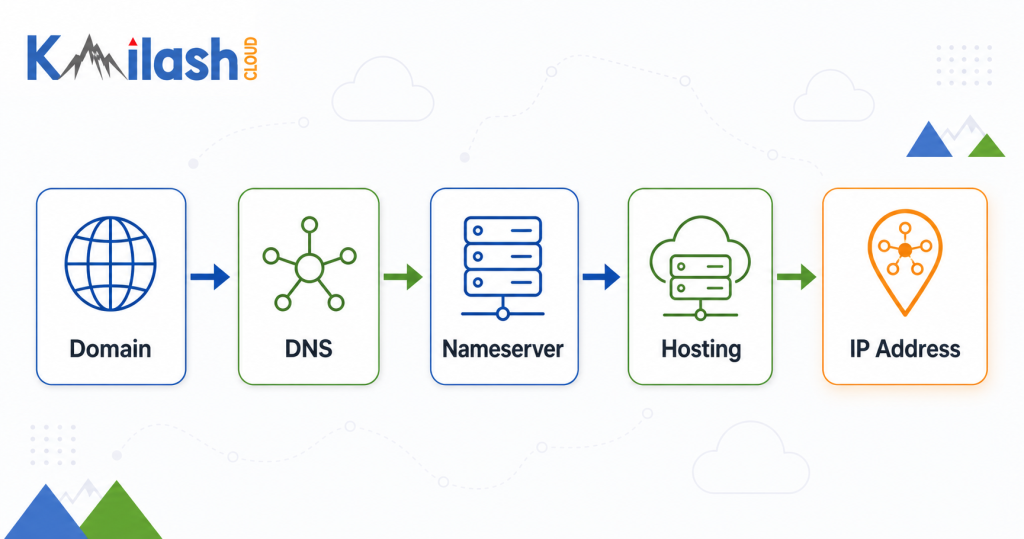
Before we see how DNS works step by step, let’s quickly understand the four pieces involved.
- Domain name is the web address people type into their browser, such as
google.com. - DNS is the system that translates that domain name into an IP address.
- Nameservers store the DNS records for your domain and answer DNS queries.
- Web hosting is the server where your website’s files, images, and databases are stored.
- IP address is the numerical address computers use to find and communicate with your website.
Here’s the easiest way to remember it:
Your domain name is the address people know, your web hosting is where your website lives, and DNS is the system that connects them.
Introduction
If you’ve ever registered a domain, changed web hosts, set up a business email, or pointed a website to a new server, you’ve already interacted with DNS, even if you didn’t realize it. It’s one of the most important parts of the internet, yet it’s also one of the least understood.
Most people don’t think about DNS until something goes wrong. A website suddenly stops loading, emails disappear after a migration, or a small change to a DNS record causes hours of confusion. In many cases, the problem isn’t the website or the hosting provider. It’s simply that DNS isn’t doing what you expected.
The good news is that DNS isn’t as complicated as it first appears. Once you understand how domain names, nameservers, DNS records, IP addresses, and web hosting fit together, the whole process starts to make sense.
This guide takes you through everything step by step. We’ll start with the basics, then follow the complete journey from typing a domain name into your browser to loading a live website. Along the way, you’ll learn how DNS records work, what nameservers actually do, why DNS propagation takes time, how website migrations affect DNS, and how to troubleshoot common problems with confidence.
Whether you’re building your first website, managing a business domain, or simply curious about how the internet works behind the scenes, this guide will give you a practical understanding of DNS without assuming you already have a networking background.
Key DNS terms you’ll see throughout this guide
You don’t need to memorize these yet. They’ll become much clearer once you see a DNS lookup in action.
- IP address – The numerical address of a server that computers use to communicate.
- Domain name – A human-friendly name such as
example.comthat points to an IP address. - DNS record – A rule that tells DNS what to do, such as pointing a domain to a website or directing email to a mail server.
- Nameserver – The server that stores your domain’s DNS records and answers DNS requests.
- DNS resolver – The server that searches for the correct DNS information on behalf of your browser.
Why DNS Exists
Computers don’t understand domain names like cloudflare.com or facebook.com. They communicate using IP addresses, which are numerical identifiers such as 142.250.x.x (IPv4) or 2607:f8b0:4005:805::200e (IPv6).
That creates a simple problem: people are good at remembering names, while computers only understand numbers.
Without DNS, every website you wanted to visit would require you to remember its IP address. Imagine trying to memorize a different string of numbers for your bank, your email provider, your favorite online store, and every other website you use. The internet would be frustrating to use.
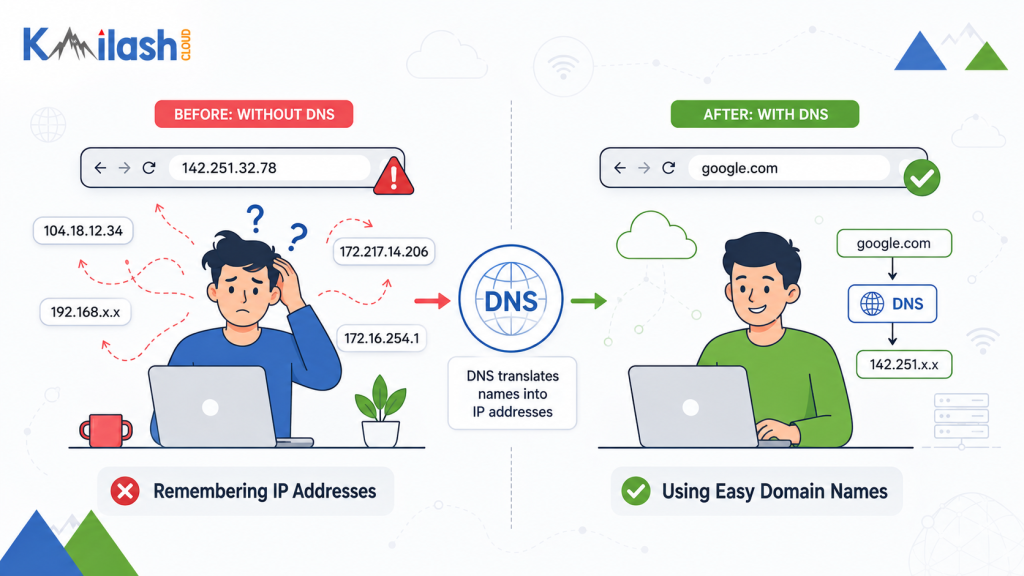
DNS solves this problem by acting as a translator. When you type a domain name into your browser, DNS looks up the correct IP address and sends your browser to the right server. This happens automatically in the background, usually within milliseconds.
It wasn’t always this way
Before DNS was introduced in the early 1980s, computers relied on a manually maintained file called HOSTS.TXT. It contained a list of computer names and their corresponding IP addresses. As the internet grew, keeping that file updated became impossible, which led to the creation of the Domain Name System (DNS).
Today, DNS is a distributed system with millions of DNS servers working together to answer billions of DNS lookups every day.
Why DNS is more than a lookup system?
DNS doesn’t just make website names easier to remember. It also gives website owners flexibility.
Because your domain name is separate from your server’s IP address, you can:
- Move your website to a new hosting provider without changing your domain name.
- Use one provider for your website and another for email.
- Send visitors to the closest server for faster loading.
- Redirect traffic to a backup server if your main server goes offline.
This separation between names and server addresses is one of the reasons the modern internet is reliable, scalable, and easy to manage.
DNS Explained
The Domain Name System (DNS) is a global system that translates human-friendly domain names into the IP addresses that computers use to communicate. Every time you open a website, send an email, or use an online app, DNS works behind the scenes to find the correct destination.
DNS isn’t owned by one company or stored on one server. Instead, it’s a distributed system made up of millions of DNS servers around the world that work together to answer one simple question:
“Which IP address belongs to this domain name?”
Domain, DNS, and web hosting are different things
One of the biggest sources of confusion is that people often treat a domain name, DNS, and web hosting as if they’re the same service.
These are separate services. You can buy all three from one company or use different providers for each. As long as they’re configured correctly, they’ll work together.
- Domain name is the web address people type into their browser.
- Web hosting is where your website’s files, images, and databases are stored.
- DNS is the technology that connects your domain name to your hosting server by translating the domain into an IP address, allowing visitors to reach your website.
If you’re planning to launch a website, start by registering a domain name in Nepal, then choose the best web hosting in Nepal that fits your needs. Once your domain, DNS, and hosting are connected, visitors can access your website without needing to know its IP address.
How DNS Works
Now that you know what DNS is, let’s see what happens behind the scenes when you visit a website.
Suppose you type cloudflare.com into your browser and press Enter. Within milliseconds, your computer and several DNS servers work together to find the correct IP address before your browser can load the website.
DNS Lookup Process
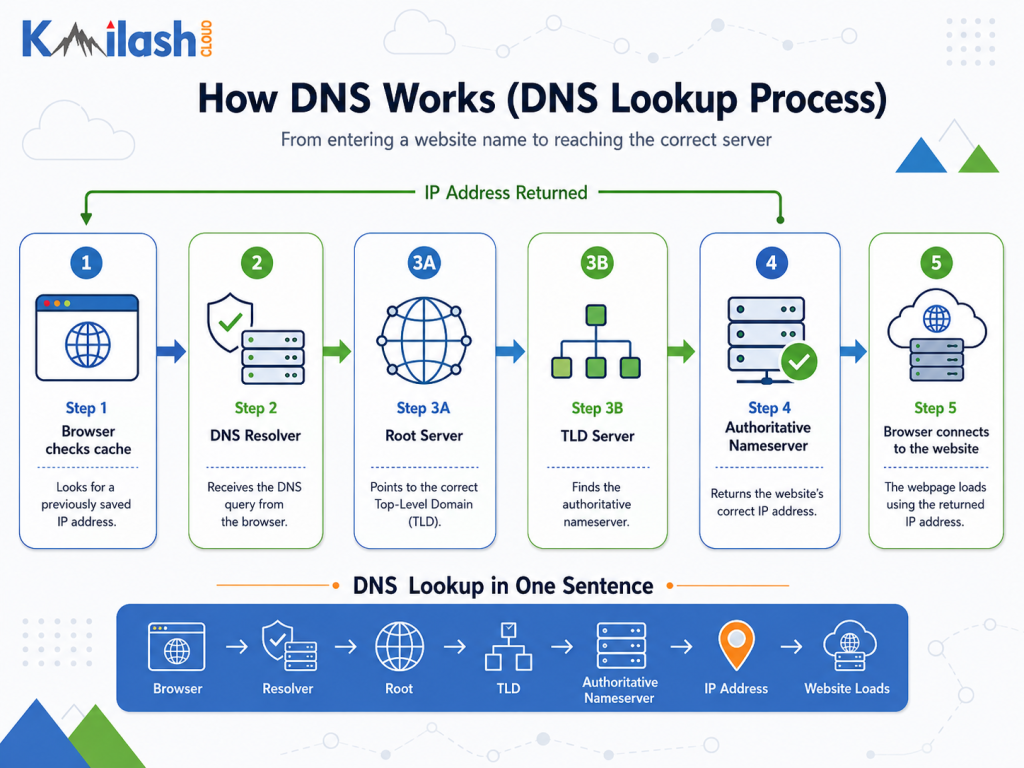
Step 1: Your browser checks its cache
Before asking anyone else, your browser checks whether it already knows the website’s IP address from a recent visit.
If it does, the website loads immediately without performing another DNS lookup.
Step 2: The request goes to a DNS resolver
If the browser doesn’t have the answer, it sends the request to a DNS resolver. This is usually provided by your internet service provider, although many people use public DNS services like Cloudflare or Google Public DNS.
The resolver’s job is simple: find the correct IP address for the domain.
Step 3: The resolver checks the DNS hierarchy
If the resolver doesn’t already know the answer, it begins asking other DNS servers.
It follows the same path every DNS lookup uses:
- Root nameserver
- Top-Level Domain (TLD) nameserver
- Authoritative nameserver
Each server points the resolver closer to the correct answer until it reaches the server that stores your domain’s DNS records.
Step 4: The authoritative nameserver returns the answer
The authoritative nameserver stores your domain’s DNS records.
When asked for the IP address of google.com, it returns the correct record, such as:
google.com → A records → 142.251.211.110
This server is called authoritative because it provides the official answer for the domain.
Step 5: Your browser connects to the website
The DNS resolver sends the IP address back to your browser.
Your browser then connects to that IP address, requests the website from the hosting server, and displays the page.
From your perspective, all of this usually happens in a fraction of a second.
What Is a Nameserver?
A nameserver is a server that stores your domain’s DNS records and answers DNS requests. When someone visits your website, DNS eventually reaches your domain’s authoritative nameserver to find the correct records, such as your website’s IP address.
Most domains use at least two nameservers for reliability. They usually look something like this:
ns1.kailashcloud.com
ns2.kailashcloud.com
If one nameserver becomes unavailable, the other can continue answering DNS queries.
Why nameservers matter
Your nameservers determine who manages your DNS.
For example:
- If your nameservers point to your web hosting provider, your DNS records are managed there.
- If they point to Cloudflare, you manage your DNS records in Cloudflare.
- If they point to your domain registrar, you manage them through your registrar’s DNS panel.
The important thing to remember is that only the provider hosting your nameservers can answer DNS queries for your domain.
Connecting a domain to your hosting
There are two common ways to connect a domain to a website.
| Method | What you change | Best for |
|---|---|---|
| Change nameservers | Replace your registrar’s nameservers with those provided by your hosting company or DNS provider. | When you want your web host (or a DNS provider) to manage everything |
| Edit DNS records | Keep your existing nameservers and update records such as A, AAAA, or CNAME. | Your DNS is already where you want it and you just need to point or tweak a record |
A common mistake
A frequent source of confusion is editing DNS records in the wrong dashboard.
For example, if your nameservers point to Cloudflare, changing DNS records at your domain registrar won’t affect your website because your registrar is no longer responsible for your DNS.
Always edit DNS records where your current nameservers are hosted.
How to change nameservers
Changing nameservers is straightforward:
- Log in to your domain registrar.
- Open the DNS or Nameserver settings for your domain.
- Replace the existing nameservers with the new ones provided by your hosting or DNS provider.
- Save your changes.
After saving, the changes begin propagating across the internet. Some users may see the new DNS information within minutes, while others may continue seeing the old records until cached information expires. We’ll explain DNS propagation in a later section.
DNS Records Explained
DNS records are the instructions that tell the internet what to do with your domain. They decide where your website is hosted, which server receives your email, how subdomains behave, and even whether services like Google Workspace or Microsoft 365 can verify your domain.
Think of your domain as a contact in your phone. The contact’s name is easy to remember, but it can have multiple pieces of information attached to it, such as a phone number, email address, or home address. DNS records work in a similar way. Each record stores one specific piece of information about your domain.
For example, one record tells browsers where your website lives, while another tells email providers where to deliver your messages. Others help protect your domain from email spoofing or verify ownership for third-party services.
Without DNS records, your domain name would exist, but it wouldn’t know where to send visitors or email.
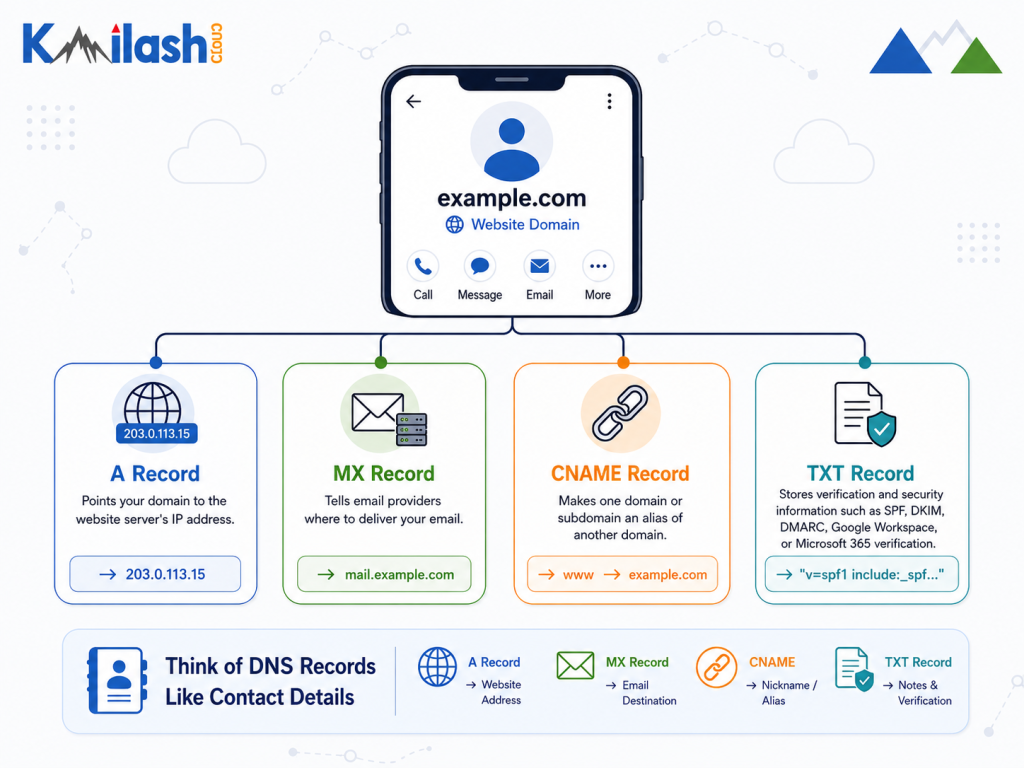
Every DNS record has a specific job
Each DNS record serves a different purpose.
Some records are essential for almost every website, while others are only needed for specific services.
Here’s a quick overview of the most common record types you’ll encounter.
| Record | Purpose | Common use |
| A | Points a domain to an IPv4 address. | Connecting a website to hosting. |
| AAAA | Points a domain to an IPv6 address. | Supporting IPv6 visitors. |
| CNAME | Creates an alias for another name. | Pointing www to a subdomain |
| MX | Specifies which mail server receives email. | Business email services. |
| TXT | Stores text-based information. | Domain verification and email security. |
| SPF | (A TXT record) authorizes mail senders | Stopping spoofed email |
| DKIM | (A TXT record) signs your email | Improving deliverability |
| DMARC | (A TXT record) sets email policy | Protecting your domain from abuse |
| NS | Specifies the authoritative nameservers. | Delegating DNS management. |
| SRV | Locates specific network services. | VoIP, Microsoft services, and chat applications. |
A Record
An A record, short for Address record, maps a domain name to an IPv4 address. It’s the most fundamental record on the internet, the one that actually answers the question “where does this website live?”
Suppose you own the domain example.com, and your hosting provider has assigned your server the IPv4 address 192.0.2.45.To make the site load, you create two records.
| Name | Type | Value | TTL |
| @ | A | 192.0.2.45 | 3600 |
Now example.com resolve to your server.
Note: The TTL (Time to Live) value of 3600 means DNS resolvers can cache the record for 3,600 seconds (1 hour) before checking for updates. A shorter TTL allows DNS changes to propagate more quickly, while a longer TTL reduces the number of DNS lookups and can improve performance.
AAAA Record
An AAAA record, said aloud as “quad-A,” does exactly what an A record does but for an IPv6 address, the newer and vastly larger address format the internet has been slowly moving toward for years.
| Name | Type | Value | TTL |
| @ | AAAA | 2001:db8::8a2e:370:7334 | 3600 |
You usually add an AAAA alongside your A record rather than instead of it. Visitors on IPv6 networks use the AAAA, everyone else falls back to the A.
CNAME Record
A CNAME, the Canonical Name record, points one name to another name instead of to an IP. It’s an alias. When a resolver hits a CNAME it’s effectively told “don’t look here, go look up this other name instead,” and the lookup carries on from there.
The textbook use is pointing www at your root domain so the IP only lives in one place.
| Name | Type | Value | TTL |
| www | CNAME | example.com | 3600 |
MX Record
An MX record, short for Mail Exchange, tells the world which server receives email for your domain. Without a correctly configured MX record, emails won’t be delivered.
MX records carry a priority number, and lower numbers are tried first, which is how you set up a backup mail server.
| Name | Type | Priority | Value | TTL |
| @ | MX | 10 | mail.example.com | 3600 |
| @ | MX | 20 | mail2.example.com | 3600 |
Here mail tries mail.example.com first at priority 10 and only falls back to mail2 at priority 20 if the first is unreachable.
TXT Record
A TXT (Text) record stores text information associated with your domain. It’s commonly used for domain verification and email authentication, including SPF, DKIM, and DMARC.
| Name | Type | Value | TTL |
| @ | TXT | google-site-verification=Abc123… | 3600 |
In this example, Google checks for the verification string in your DNS records to confirm that you own the domain.
SPF Record
An SPF (Sender Policy Framework) record is a special TXT record that tells email providers which mail servers are allowed to send emails on behalf of your domain. It helps prevent spammers from sending fake emails using your domain name.
| Name | Type | Value | TTL |
| @ | TXT | v=spf1 include:_spf.example.com ~all | 3600 |
include:_spf.example.com authorizes Mail servers to send emails for your domain.
DKIM Record
A DKIM (DomainKeys Identified Mail) record is a special TXT record that helps verify your outgoing emails are authentic. It stores a public key that receiving mail servers use to confirm that an email was sent by your domain and hasn’t been modified in transit.
Example
| Name | Type | Value | TTL |
|---|---|---|---|
selector1._domainkey | TXT | v=DKIM1; k=rsa; p=MIGfMA0GCS... | 3600 |
In this example:
selector1._domainkeyis the selector provided by your email service.p=contains the public key used to verify the email’s digital signature.- If the signature is valid, recipients can trust that the email is genuine and hasn’t been altered.
DMARC Record
A DMARC (Domain-based Message Authentication, Reporting, and Conformance) record is a special TXT record that works with SPF and DKIM to protect your domain from email spoofing. It tells receiving mail servers what to do if an email fails authentication and where to send authentication reports.
DMARC records are always created on the _dmarc subdomain.
Example
| Name | Type | Value | TTL |
|---|---|---|---|
_dmarc | TXT | v=DMARC1; p=quarantine; rua=mailto:[email protected] | 3600 |
In this example:
p=nonemonitors failed emails but doesn’t block them.p=quarantinesends failed emails to the spam or junk folder.p=rejectblocks failed emails completely.rua=specifies the email address that receives DMARC reports.
NS Record
An NS (Nameserver) record specifies which nameservers are responsible for managing the DNS records of a domain or subdomain. It tells the internet where to look for the authoritative DNS information.
Example
| Name | Type | Value | TTL |
|---|---|---|---|
dev | NS | ns1.otherprovider.com | 3600 |
dev | NS | ns2.otherprovider.com | 3600 |
In this example, the dev.example.com subdomain is delegated to another DNS provider. This means all DNS records under dev.example.com are managed by ns1.otherprovider.com and ns2.otherprovider.com, while the rest of example.com continues to use its existing nameservers.
SRV Record
An SRV (Service) record specifies the hostname and port number for a particular service. It’s commonly used by services such as VoIP (SIP), XMPP, and some Microsoft applications to locate the correct server.
Example
| Name | Type | Priority | Weight | Port | Target | TTL |
|---|---|---|---|---|---|---|
_sip._tls | SRV | 100 | 1 | 443 | sip.example.com | 3600 |
In this example:
- Priority (100) determines which server is tried first (lower values have higher priority).
- Weight (1) balances traffic between servers with the same priority.
- Port (443) specifies the port where the service is running.
- Target is the hostname that provides the service.
DNS Propagation: Why DNS Changes Aren’t Instant
When you update a DNS record, the change doesn’t appear across the internet immediately. This delay is called DNS propagation. During this time, some people may see the new DNS record while others continue to see the old one.
Why does DNS propagation happen?
The internet uses DNS caching to speed up website lookups. Instead of asking your domain’s nameserver every time, DNS resolvers temporarily store (cache) DNS records.
If a resolver has cached your old record, it will continue using that record until the cache expires even if you’ve already updated it. How long the cache lasts depends on the record’s TTL (Time to Live) value.
This allows DNS changes to spread much faster and reduces downtime during migrations.
How Long Does DNS Propagation Take?
In most cases, DNS changes propagate within a few minutes to a few hours. However, it can sometimes take up to 24–48 hours, depending on:
- The previous TTL value
- DNS resolver caching policies
- Your internet service provider (ISP)
Tip: Don’t rely on your own browser to confirm DNS changes. Browsers and ISPs often cache DNS results. Instead, use DNS Checker to see how your DNS records are resolving from dozens of locations around the world. This helps you determine whether the issue is propagation or a configuration error.
DNS Security
Every time someone visits your website, sends you an email, or connects to one of your online services, DNS helps direct that request to the right destination.
Because DNS sits at the beginning of almost every internet connection, it’s also a common target for attackers. If someone can manipulate your DNS settings, they may be able to redirect visitors to a fake website, intercept email, or make your website unavailable.
The good news is that most DNS-related attacks are preventable with a few basic security practices.
Common DNS security threats
Here are some of the most common ways attackers target DNS.
| Threat | What happens | Possible impact |
| DNS hijacking | Attacker changes your records or nameservers | Visitors sent to a fake site or email rerouted |
| DNS spoofing | A resolver stores incorrect DNS information. | Users are sent to the wrong IP address without realizing it. |
| DDoS on DNS | DNS servers are flooded with traffic. | Your domain may become unreachable. |
| Subdomain takeover | A DNS record points to an abandoned cloud service. | An attacker claims that service and gains control of the subdomain. |
Fortunately, these attacks are relatively uncommon for most website owners. In practice, the biggest risks usually come from weak account security rather than sophisticated hacking techniques.
How to protect your DNS
You don’t need to be a security expert to keep your domain safe. Following these best practices will prevent most common DNS-related problems.
- Enable two-factor authentication (2FA)
- Use a strong, unique password
- Turn on domain lock
- Remove unused DNS records
- Add a CAA (Certification Authority Authorization) record
- Enable DNSSEC if your provider supports it
Using Third-Party DNS Providers (Cloudflare and Others)
You don’t have to manage your DNS with the same company that hosts your website or registered your domain.
Many website owners use a dedicated DNS provider like Cloudflare while keeping their domain registered with one company and their website hosted with another.
If you’re unfamiliar with Cloudflare, you can explore its DNS and security platform on the official website: https://www.cloudflare.com/dns/
This setup is common because DNS providers often offer benefits beyond basic DNS management, including :
- Faster DNS resolution through a globally distributed network
- DDoS protection against malicious traffic
- Advanced security features and traffic filtering
- DNS analytics and performance insights
- Built-in Content Delivery Network (CDN) services to improve website speed
How it works
Normally, your domain registrar points your domain to the nameservers provided by your hosting company.
When you move your DNS to a third-party provider such as Cloudflare, you replace those nameservers with the ones supplied by Cloudflare.
From that point on, Cloudflare becomes the authoritative DNS provider for your domain.
That means:
- Your DNS records are managed in the Cloudflare dashboard.
- Changes made at your previous DNS provider no longer affect your website.
- Visitors still reach your hosting server, but DNS requests are answered by Cloudflare.
Proxied vs. DNS Only records
One feature that makes Cloudflare different from many DNS providers is its optional proxy service.
When a record is proxied, visitors connect to Cloudflare first. Cloudflare then forwards traffic to your hosting server while helping improve performance and absorb malicious traffic.
When a record is set to DNS Only, Cloudflare simply answers the DNS request and sends visitors directly to your server.
Website Migration DNS Checklist
Moving your website to a new hosting provider doesn’t have to cause downtime. With a little preparation, you can migrate your website while keeping both your site and email working normally.
The key is to make your DNS changes only after the new server is fully ready.
Before you change DNS
Complete these tasks before updating any DNS records or nameservers.
- Make a full backup of your website and database.
- Verify that all DNS records (A, AAAA, CNAME, MX, TXT, SPF, DKIM, and DMARC) are documented.
- Lower the TTL for records you’ll change (for example, from 3600 seconds to 300 seconds).
- Upload your website to the new hosting server.
- Create all required DNS records on the new DNS provider if you’re changing nameservers.
- If DNSSEC is enabled, disable it before changing nameservers.
During the migration
Once everything has been tested, it’s time to switch your traffic to the new server.
- Update your A and AAAA records, or change your nameservers if you’re moving DNS providers.
- Verify that the website loads correctly from the new server.
- Test important pages, forms, and login functionality.
- Send and receive a test email using your domain.
- Monitor DNS propagation from multiple locations.
After the migration
Even after your website is loading correctly, a few final checks can help prevent problems later.
- Re-enable DNSSEC if you use it.
- Increase your TTL back to its normal value (typically 3600 seconds or higher).
- Leave your old hosting account active for at least 48 to 72 hours helps prevent downtime while DNS propagation finishes.
- Monitor website traffic and error logs.
- Confirm that email continues working normally.
- Remove the old hosting account only after you’re sure all traffic has moved to the new server.
Frequently Asked Questions
What is DNS?
DNS stands for Domain Name System. It’s like the internet’s address book. When you type a website address such as example.com, DNS translates that name into the IP address that computers use to locate the correct server.
How does DNS work?
When you visit a website, your browser asks a DNS resolver to find the website’s IP address. The resolver checks several DNS servers, retrieves the correct IP address, and returns it to your browser, which then connects to the website. The entire process usually takes only a few milliseconds.
What’s the difference between DNS and a nameserver?
DNS is the overall system that translates domain names into IP addresses. A nameserver is one server within that system that stores your domain’s DNS records and answers queries about them.
What are the most common DNS record types?
The most commonly used DNS records are:
- A – Points a domain to an IPv4 address.
- AAAA – Points a domain to an IPv6 address.
- CNAME – Creates an alias for another domain name.
- MX – Routes email.
- TXT – Stores verification and email security records.
- NS – Identifies the authoritative nameservers for a domain.
What’s the difference between an A record and a CNAME?
An A record points directly to an IP address.
A CNAME points to another domain name instead.
Use an A record for your main website and a CNAME for aliases such as www.
How long does DNS propagation take?
Most DNS changes appear within a few minutes to a few hours. In some cases, they can take up to 48 hours, depending on DNS caching and TTL values.
What is TTL in DNS?
TTL (Time To Live) tells DNS resolvers how long they can cache a DNS record before checking for updates.
A lower TTL allows changes to spread more quickly, while a higher TTL reduces the number of DNS lookups.
How do I connect my domain to my hosting?
You have two options:
- Change your nameservers so your hosting provider manages DNS.
- Keep your current nameservers and update the A record to point to your hosting server.
Why did my email stop working after changing DNS?
Changing nameservers moves all of your DNS records, including email records.
If MX, SPF, DKIM, or DMARC records aren’t copied to the new DNS provider, email may stop working until they’re restored.
What is DNSSEC?
DNSSEC (Domain Name System Security Extensions) adds digital signatures to DNS records so resolvers can verify that DNS responses haven’t been modified by attackers.
It improves DNS security but does not encrypt DNS traffic.
What is DNS hijacking?
DNS hijacking happens when someone gains control of your DNS settings and redirects your domain to a different destination.
The best protection is using strong passwords, enabling two-factor authentication (2FA), turning on Domain Lock, and using DNSSEC where available.
Conclusion
DNS feels complicated until you can see how the pieces fit together. Your domain name is the address people know, your web hosting is where your website lives, and DNS is the system that quietly connects the two. Every record you’ve read about here is just one instruction in that system, telling the internet where your site loads, where your email goes, and how to confirm it’s really you.
A few habits will save you most of the trouble people run into. Always edit your DNS records where your nameservers actually point. Turn on two-factor authentication with domain lock, because that’s what stops most real attacks.
Once it’s set up correctly, DNS does its job in the background and you rarely have to think about it again. If you’d like your domain, DNS, hosting, and email managed together in one place, explore Kailash Cloud hosting to get started.