
Managing a website often means more than running a single domain. You may want to create a separate area for your blog, launch a testing website, build an online store, or host another completely different website from the same hosting account.
This is where subdomains and addon domains in cPanel become useful.
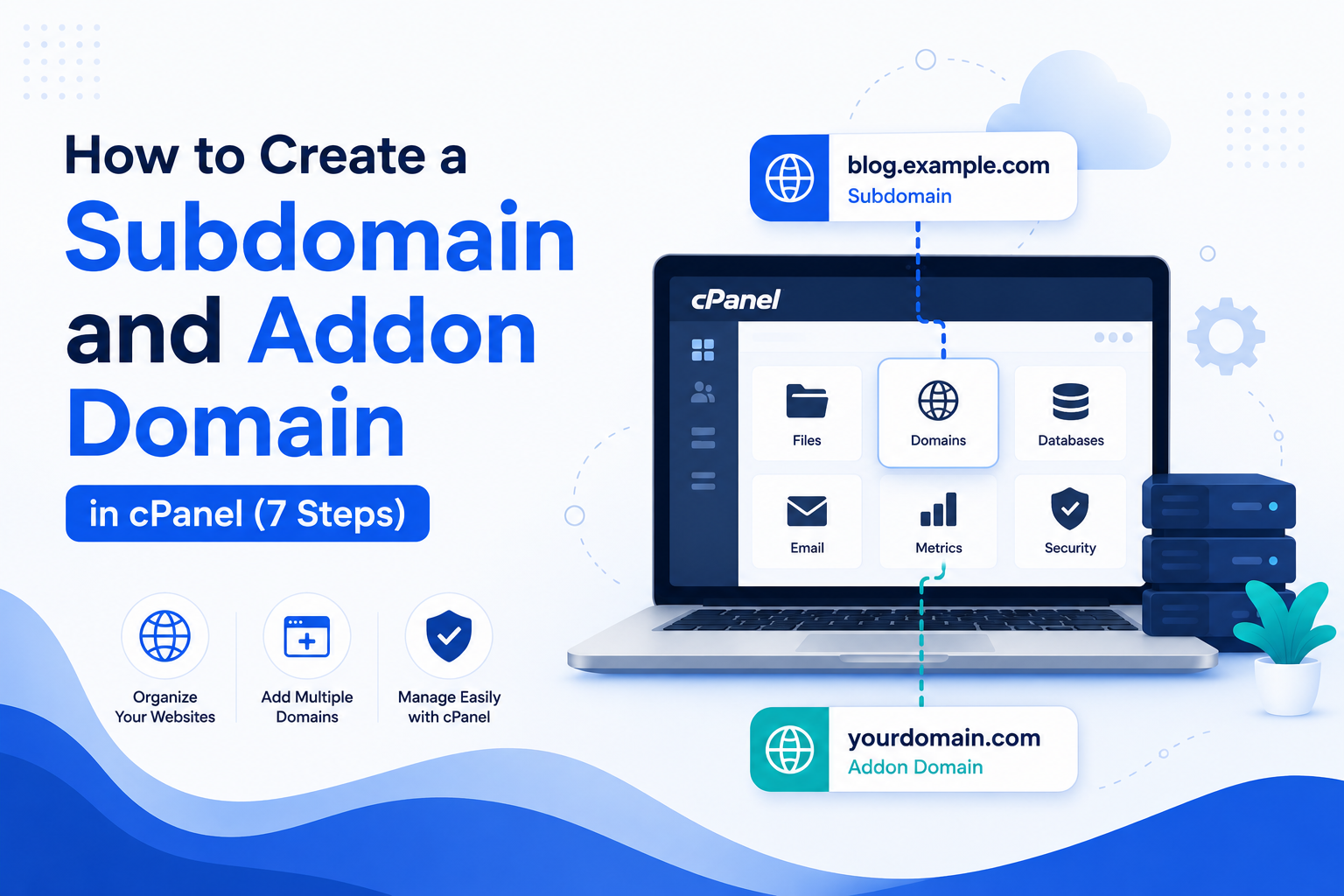
A subdomain lets you create a separate section under your existing domain, such as blog.example.com or shop.example.com.
An addon domain, on the other hand, allows you to host another domain and website from the same cPanel account, provided your hosting plan supports it.
The good news is that you can manage both from the cPanel Domains interface without complicated server commands.
In this guide, you will learn how to create a subdomain and addon domain in cPanel, how to connect DNS, where your website files are stored, and what to check if your new domain does not open.
Quick Answer: How to create a subdomain and addon domain in cPanel
Create a Subdomain
- Log in to cPanel.
- Open Domains.
- Click Create a New Domain.
- Enter your subdomain, such as
blog.example.com. - Untick “Share document root” if you want the subdomain to have its own separate website and document root.
- Specify the document root for the subdomain.
- Click Submit.
- Upload or install your website files to the assigned directory.
Add an Addon Domain
- Log in to cPanel.
- Open Domains.
- Click Create a New Domain.
- Enter your new registered domain, such as
example2.com. - Untick “Share document root” to give the addon domain its own separate website and document root.
- Specify or confirm the document root for the addon domain.
- Click Submit.
- Upload or install your website files in the assigned directory.
What Is a Subdomain?
A subdomain is a separate section of a website that is created under an existing domain name. It allows you to organize different parts of your website or run separate services without registering another domain.
For example, if your main website is example.com, you can create subdomains such as:
blog.example.comshop.example.comsupport.example.com
Each subdomain can have its own content, files, and purpose. For instance, you might use one for a blog, another for an online store, and another for customer support.
Subdomains are especially useful when you want to keep different sections or projects organized while maintaining the same primary domain.
What Is an Addon Domain?
An addon domain is an additional domain that you can host from the same cPanel account as your secondary domain. It allows you to manage multiple websites from one hosting account without needing a separate cPanel account for each site.
For example, if your primary domain is mybusiness.com, you can add another domain such as mytravelblog.com to the same cPanel account and host its website there.
An addon domain can have its own:
- Domain name
- Website files
- WordPress installation
- Database
- Email accounts
- Document root
The additional website remains separate from your primary domain, even though both are managed through the same cPanel account.
Addon domains are useful when you own or manage multiple websites and want to keep them under one hosting account.
Subdomain vs Addon Domain: What’s the Difference?
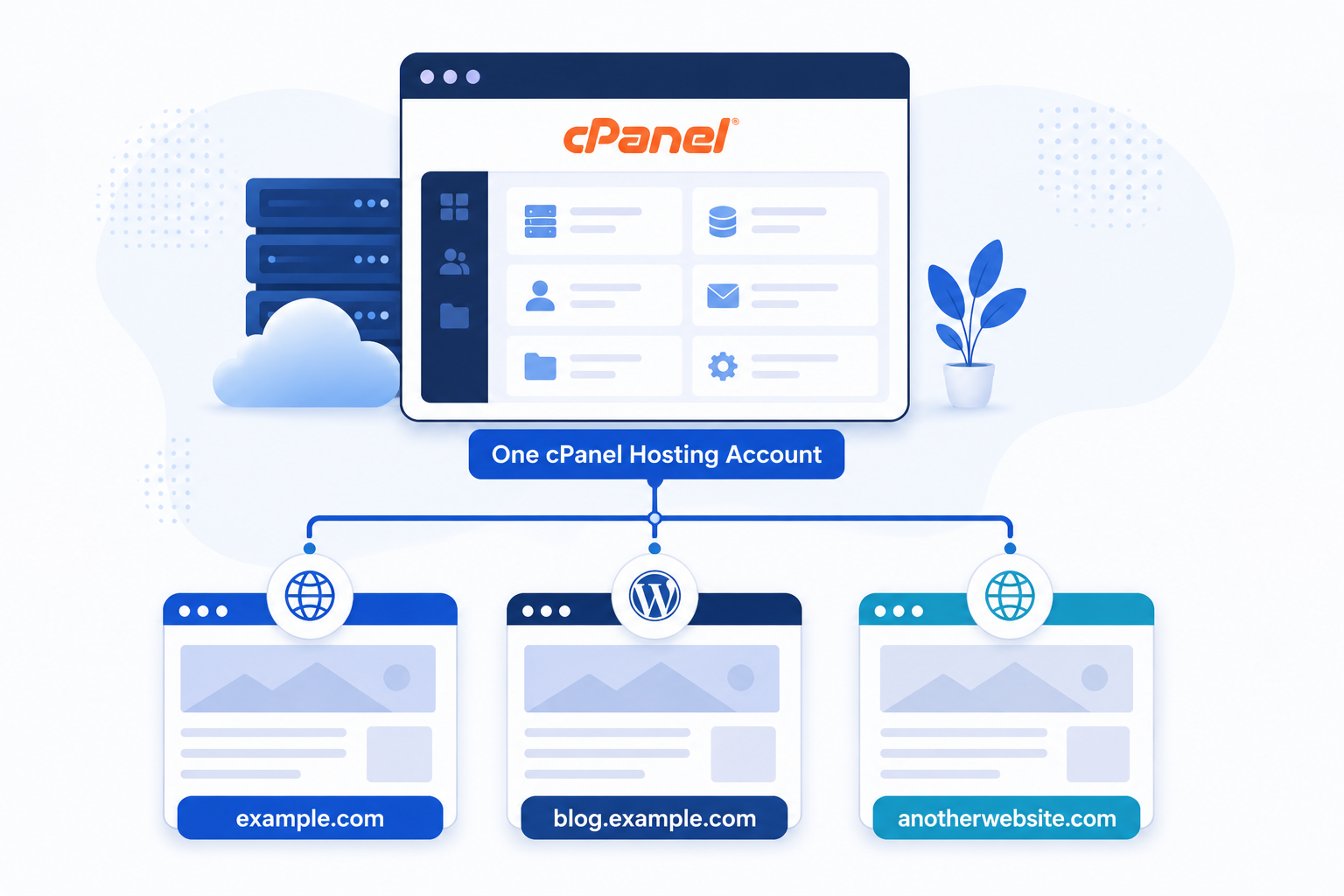
The simplest way to understand the difference is to look at the website address.
Subdomain
blog.example.com
A subdomain is created under your existing domain. In this example, blog is the subdomain of example.com.
Addon Domain
anotherwebsite.com
An addon domain is a separate registered domain that you host under the same cPanel account as your primary domain.
For example, you could host both example.com and anotherwebsite.com from the same cPanel account. Each domain can have its own website and document root.
The main difference is that a subdomain extends your existing domain, while an addon domain is a separate domain hosted within the same cPanel account.
How to Create a Subdomain in cPanel
Now let’s create a subdomain step by step.
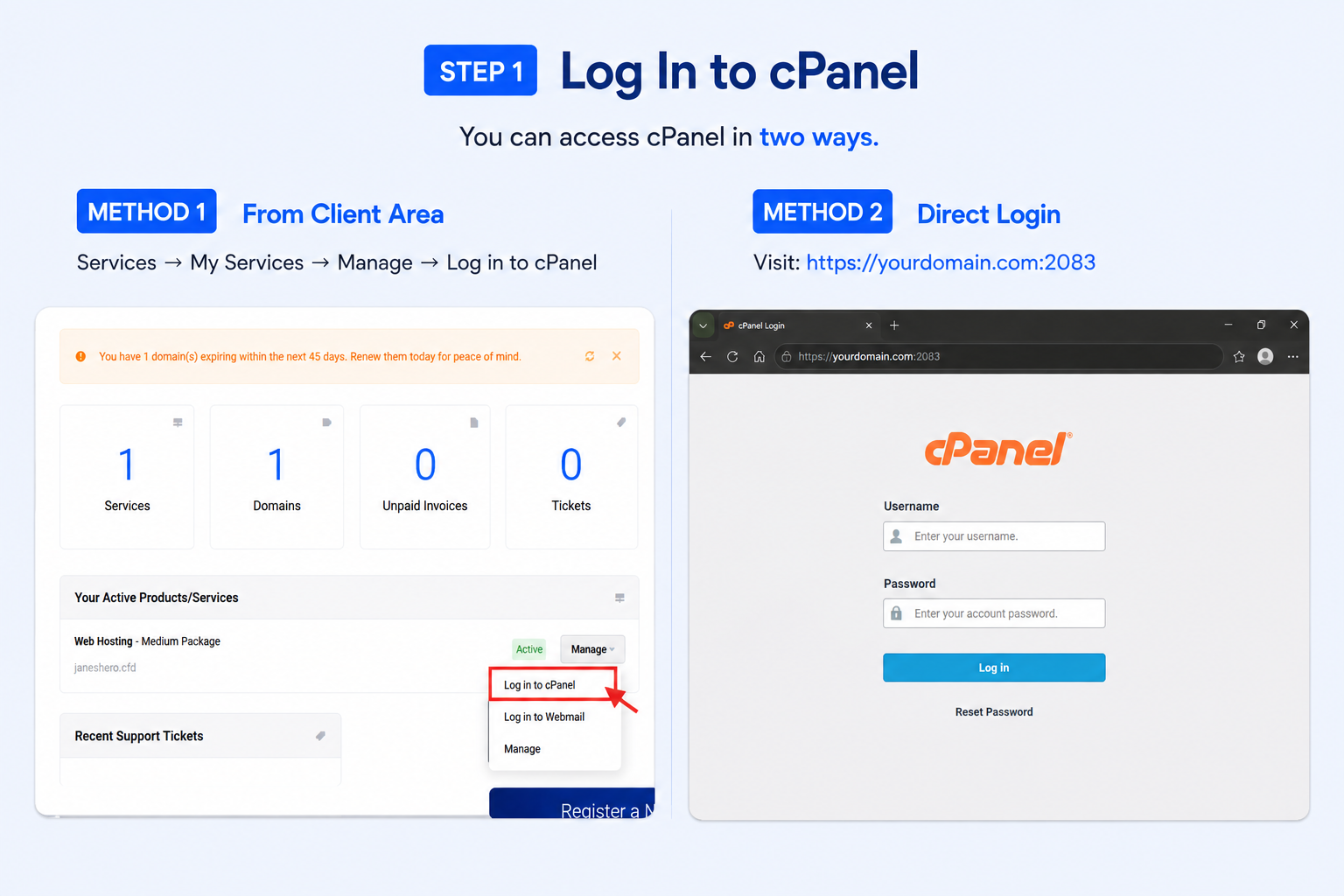
Step 1: Log In to cPanel
Log in to your hosting account and open cPanel.
For Kailash Cloud customers, you can access cPanel from your client area directly.
You can also access cPanel using:
https://yourdomain.com:2083
Replace yourdomain.com with your actual domain.
Then Enter your username and password to login.
Step 2: Open Domains
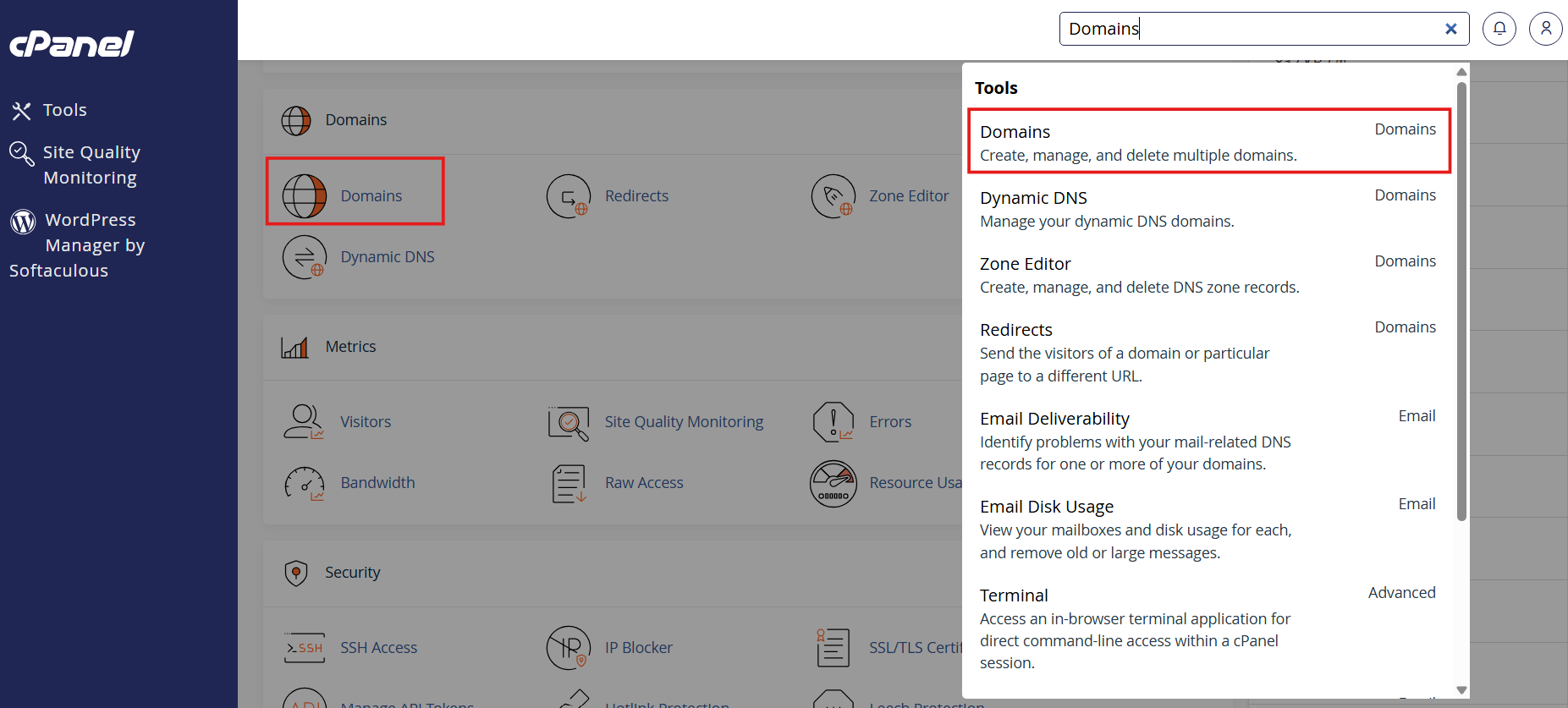
After entering cPanel, find the Domains section (or search Domains on search bar).
Click Domains.
Step 3: Create the Subdomain
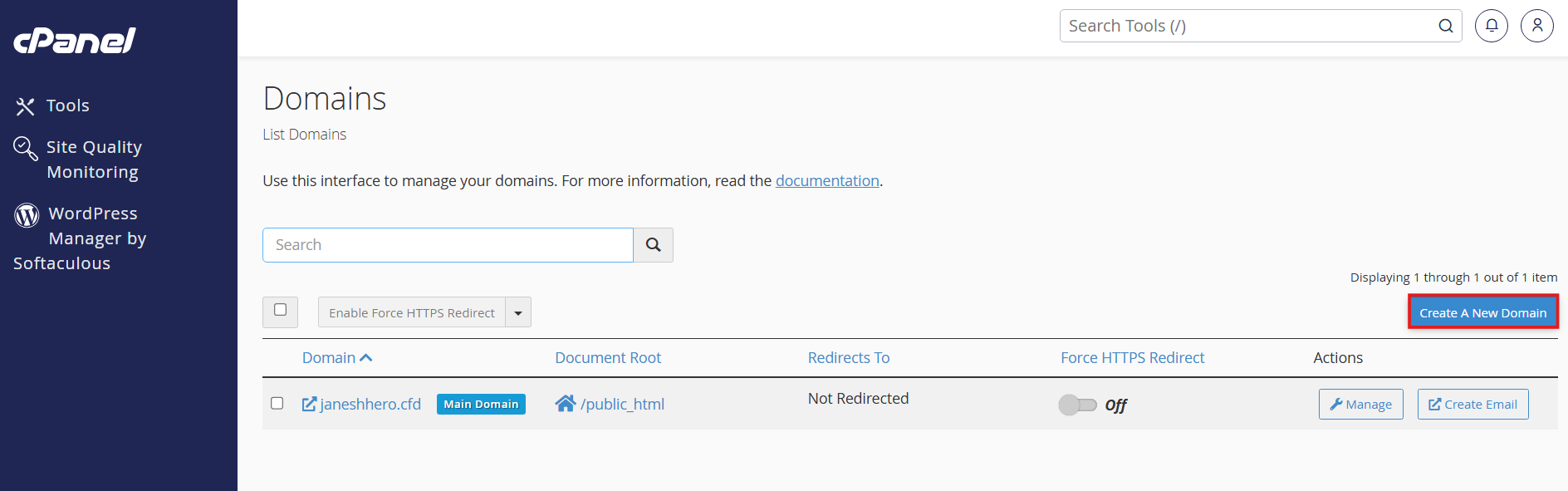
Click Create a New Domain.
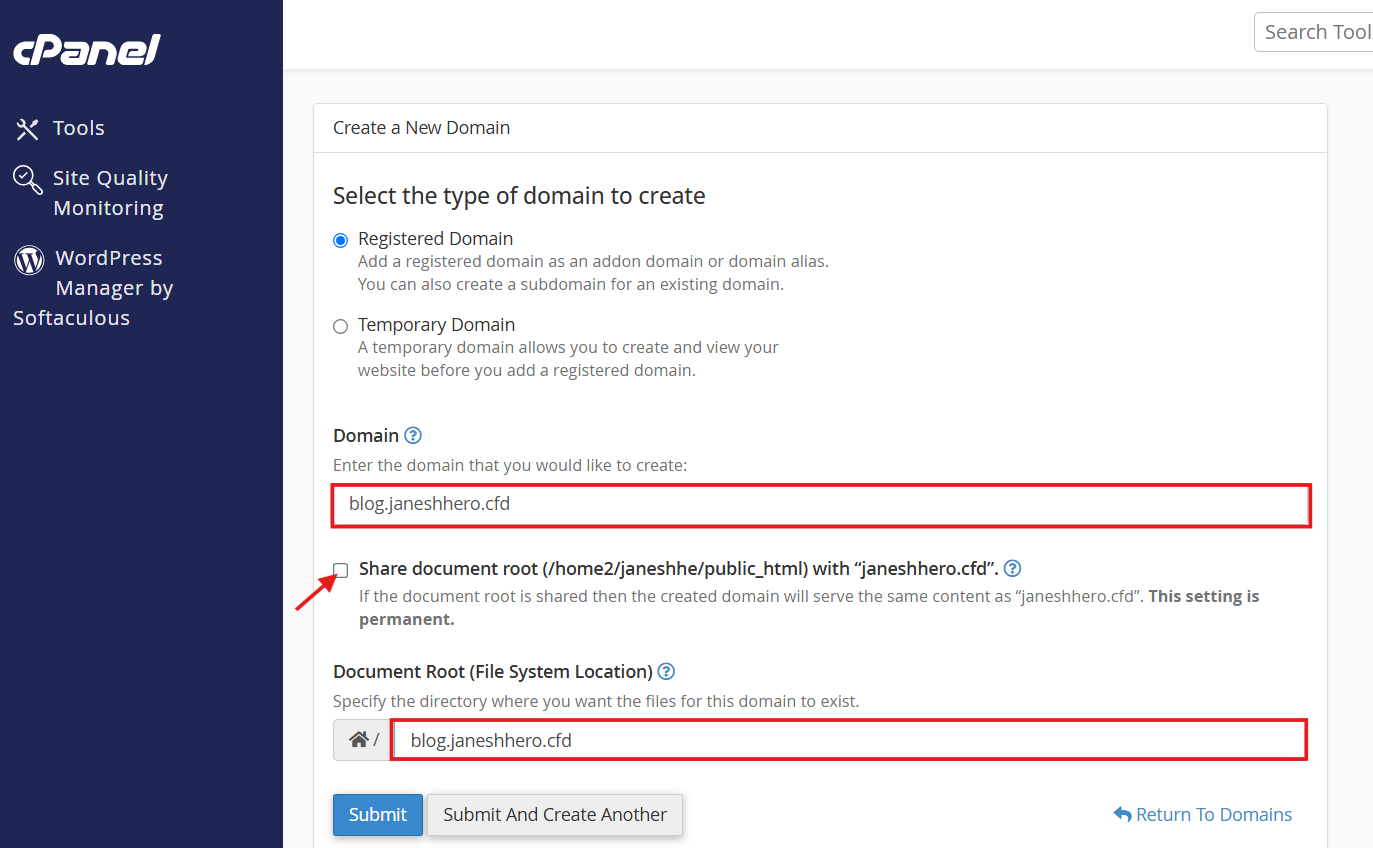
In the domain field, enter your complete subdomain.
For example:
blog.example.com
You do not need to include:
https://
cPanel recognizes the domain as a subdomain when you enter the subdomain together with the main domain.
Step 4: Choose the Document Root
The document root is the directory where the files for your subdomain are stored.
For example:
public_html/blog
Your subdomain:
blog.example.com
will serve the website files from that directory.
Unticked the Share document root option when you want the subdomain to have its own website.
Do not accidentally use the same document root as your main website unless you intentionally want both addresses to display the same content.
Step 5: Create the Subdomain
Click Submit.
Your subdomain is now added to the cPanel account.
You can open: https://blog.example.com
after the DNS configuration is available and the website files have been uploaded.
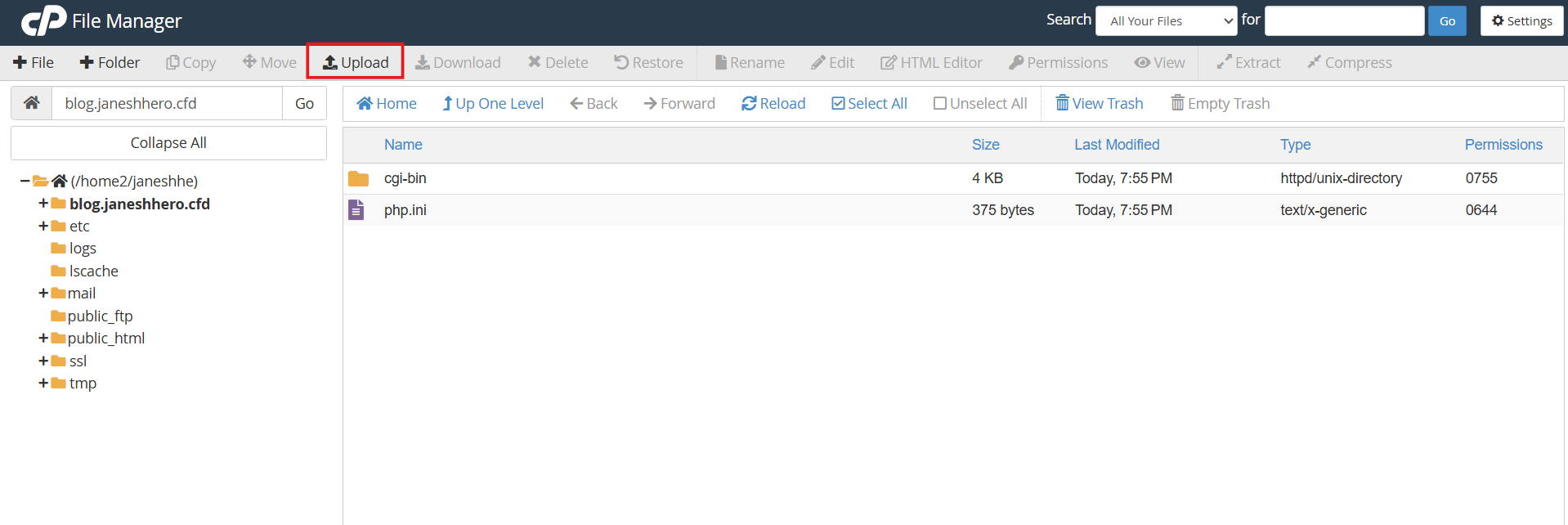
Step 6: Upload Your Website Files
Creating the subdomain only creates the domain configuration and its directory. You still need to put a website inside it.
Open:
File Manager → public_html → blog
Upload your website files into this directory.
For a basic HTML website, you might have:
index.html
For WordPress, you can install WordPress using your hosting’s application installer or upload the WordPress files manually.
Step 7: Check DNS and SSL
If the subdomain does not open immediately, do not assume that something is broken.
DNS changes may take time to propagate. cPanel notes that DNS changes can require up to 48 hours or more to reach all nameservers, although many changes become visible much sooner.
You should also check whether the subdomain has a valid SSL certificate.
If your hosting account uses AutoSSL, cPanel can request and install a certificate for a newly created domain or subdomain when the server is configured to do so.
How to Add an Addon Domain in cPanel
Now let’s look at the second common use case: hosting another domain in the same cPanel account.
Before starting, you need to own or control the additional domain.
For example:
Main domain:
mybusiness.com
Additional domain:
mynewwebsite.com
The second domain needs to be registered and connected to the hosting account.
Step 1: Open Domains in cPanel
Log in to cPanel and open:
Domains → Create a New Domain
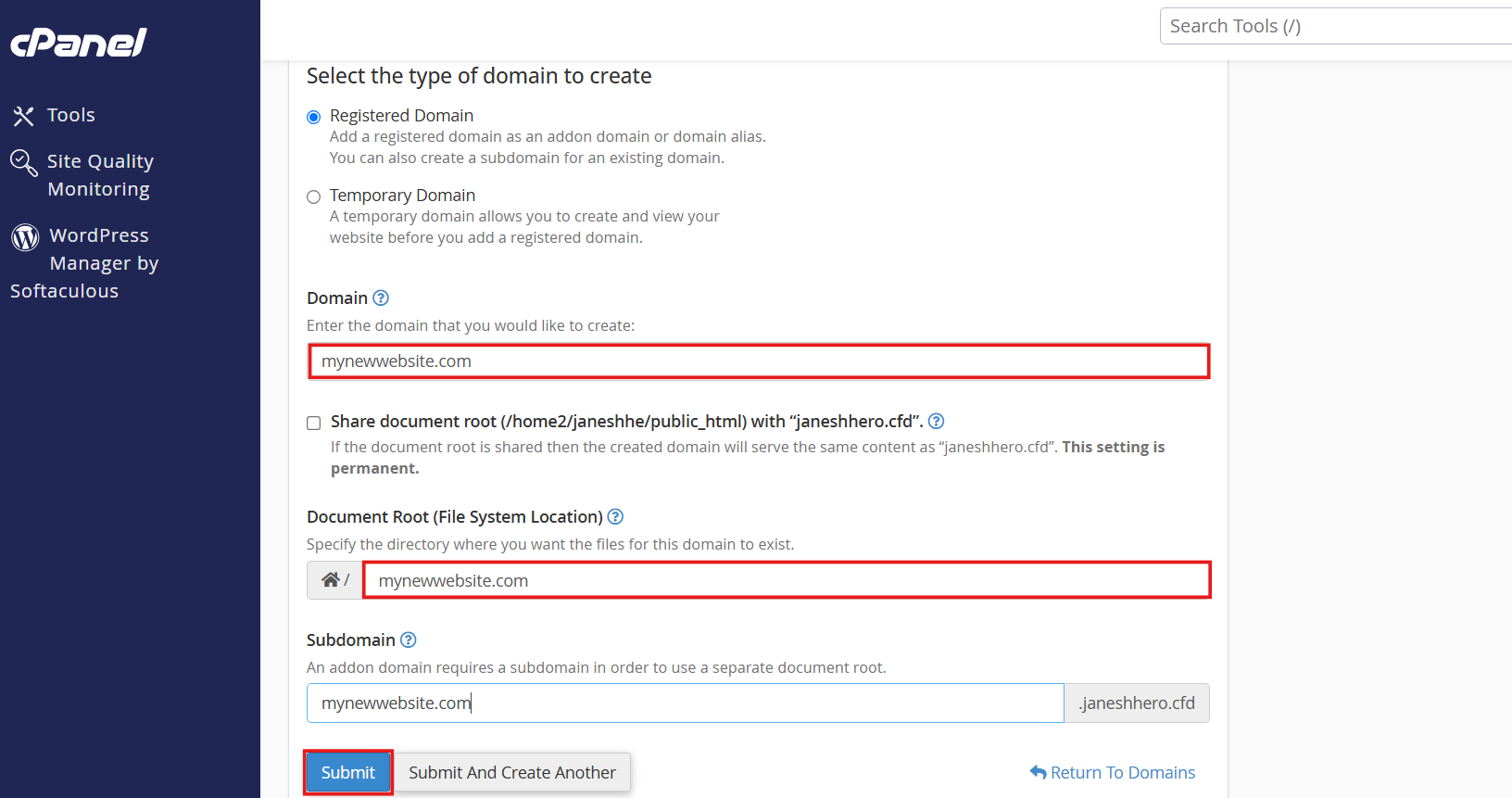
Step 2: Enter Your New Domain
Enter the complete domain name.
For example:
mynewwebsite.com
Make sure you enter the correct domain name because a spelling mistake here can create a website configuration for the wrong address.
You do not need to include:
https://
Simply enter:
mynewwebsite.com
Step 3: Create a Separate Document Root
If you want the new domain to have its own website, it needs its own document root.
For example:
public_html/mynewwebsite.com
This directory will contain the files for your second website.
Unticked Share document root option when you want the new domain to have a separate website.
When the document root is shared, the new domain serves the same content as the existing domain. When it uses its own document root, it can host a separate website.
Step 4: Submit the Domain
Review the domain and document root.
Click Submit.
cPanel will create the domain configuration.
The new domain should now appear in your Domains list.
Step 5: Point the Domain to Your Hosting
Creating the addon domain in cPanel does not automatically mean that visitors from the internet can reach it.
Your domain’s DNS must point to the correct hosting server.
If the domain was purchased from another registrar, update its nameservers to the nameservers provided by your hosting company.
If the domain is already using the correct nameservers, you may only need to wait for DNS changes to become visible.
Step 6: Upload or Install Your Website
Once the domain is configured, open:
File Manager
and navigate to the document root you selected.
For example:
public_html/mynewwebsite.com
Upload your website files there.
If you are creating a WordPress website, you can use your hosting’s one-click WordPress installer instead of performing a manual installation.
Step 7: Enable HTTPS for the New Domain
A new website should use HTTPS from the beginning.
Open your website using:
https://mynewwebsite.com
If your hosting provider uses AutoSSL, cPanel may automatically request a certificate for the newly created domain when the server supports this feature.
If HTTPS does not work, manually install ssl certificate or contact your hosting provider if necessary.
How Many Websites Can You Host in One cPanel Account?
This depends entirely on your hosting plan.
Some hosting plans allow only one domain, while others support multiple or unlimited domains and subdomains.
Before adding another website, check your hosting plan’s:
- Addon domain limit
- Subdomain limit
- Storage
- Bandwidth
- CPU resources
- RAM/resource limits
- Database limits
Adding multiple websites does not mean the server has unlimited resources. If several busy websites share one hosting account, performance can eventually become a concern.
For small websites and normal business projects, shared hosting can be a practical starting point. Larger websites with demanding applications may benefit from a VPS or another higher-resource cloud hosting environment.
Final Thoughts
Subdomains and Addon domains make cPanel much more flexible when you need to organize multiple websites or projects.
Use a subdomain when you want to create a separate section under an existing domain, such as a blog, support portal, documentation site, or application.
Use an addon domain when you want to host a completely different domain and website from the same cPanel account.
The process is straightforward: create the domain in cPanel, choose the correct document root, connect DNS, upload or install your website, and make sure HTTPS is working.
If you are planning to host several websites, choose a hosting plan that provides enough addon domains, subdomains, storage, and server resources for your projects.
Common Subdomain and Addon Domain Problems
Subdomain Is Not Opening
Check the following:
- The subdomain was created correctly.
- The DNS record points to the correct server.
- The document root contains your website files.
- An
index.htmlorindex.phpfile exists. - DNS propagation has completed.
- SSL is configured.
Addon Domain Shows the Main Website
This usually happens when the new domain is sharing the main domain’s document root.
Check the domain configuration in cPanel and confirm that the addon domain has its own document root.
cPanel’s current domain interface allows users to choose whether a new domain shares the existing document root or uses a separate one.
“Domain Already Exists” Error
The domain may already exist as:
- An addon domain
- A subdomain
- An alias
Check your cPanel Domains list before trying to create it again.
Website Shows “Not Secure”
Check whether the SSL certificate covers the new domain or subdomain.
If AutoSSL is enabled, certificate issuance may happen automatically, but it may not be immediate.
DNS Changes Are Not Working
Verify that the domain is using the correct nameservers and that the DNS records point to the correct server.
You can also check the domain from another network or use a DNS propagation checker.
Frequently Asked Questions
What is the difference between a subdomain and an addon domain?
A subdomain is part of an existing domain, such as blog.example.com. An addon domain is a separate domain, such as anotherwebsite.com, hosted within the same cPanel account.
How do I create a subdomain in cPanel?
Open cPanel → Domains → Create a New Domain, enter your complete subdomain such as blog.example.com, choose its document root, and submit the form.
How do I add an addon domain in cPanel?
Open Domains → Create a New Domain, enter your registered domain, give it a separate document root, and submit the configuration.
Can I install WordPress on a subdomain?
Yes. You can install WordPress on a subdomain such as:
blog.example.com
It will operate as a separate WordPress installation when configured with its own files and database.
Can I host multiple websites in one cPanel account?
Yes, if your hosting plan supports multiple addon domains. Each website can have its own domain, directory, files, database, and WordPress installation.
Does creating a subdomain affect my main website?
Normally, creating a subdomain does not change the files of your main website when the subdomain uses a separate document root.
How long does it take for a new subdomain to work?
It can work within minutes when DNS is already configured correctly, but DNS changes can take longer to propagate across the internet. cPanel notes that propagation can sometimes require 48 hours or more.
Can I create a subdomain without buying another domain?
Yes. You do not need another registered domain to create a subdomain. If you own example.com, you can create blog.example.com, shop.example.com, or another subdomain under it.