
A professional email address like [email protected] helps build trust and gives your business a more credible online presence than a Gmail address. If your web hosting includes cPanel, you can create and manage your domain-based email accounts without any advanced technical knowledge.
In this guide, you’ll learn how to create an email account in cPanel, change its password, set storage limits, manage access, delete accounts you no longer need, and log in to check your emails. We’ll also cover common email issues and how to fix them, so you can manage your business email with confidence.
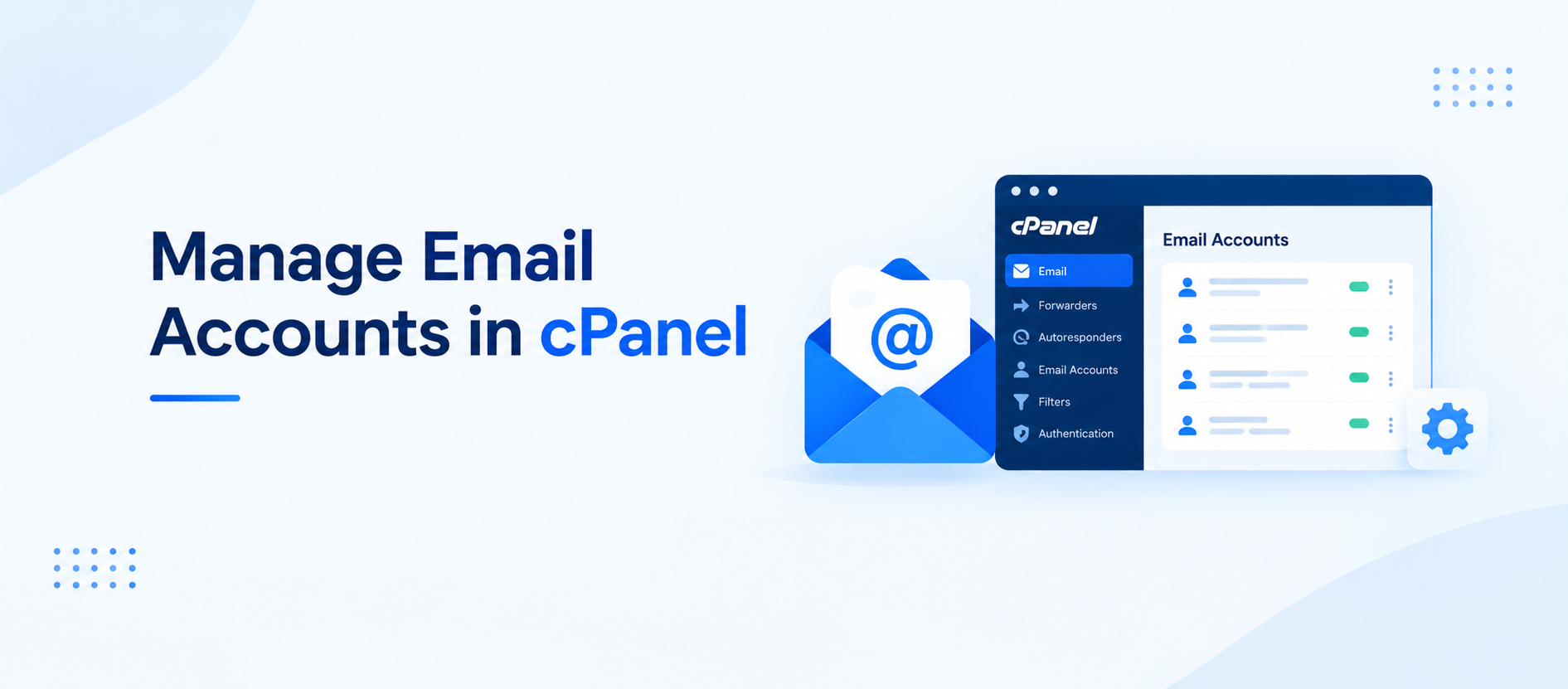
Where to Find Email Accounts in cPanel
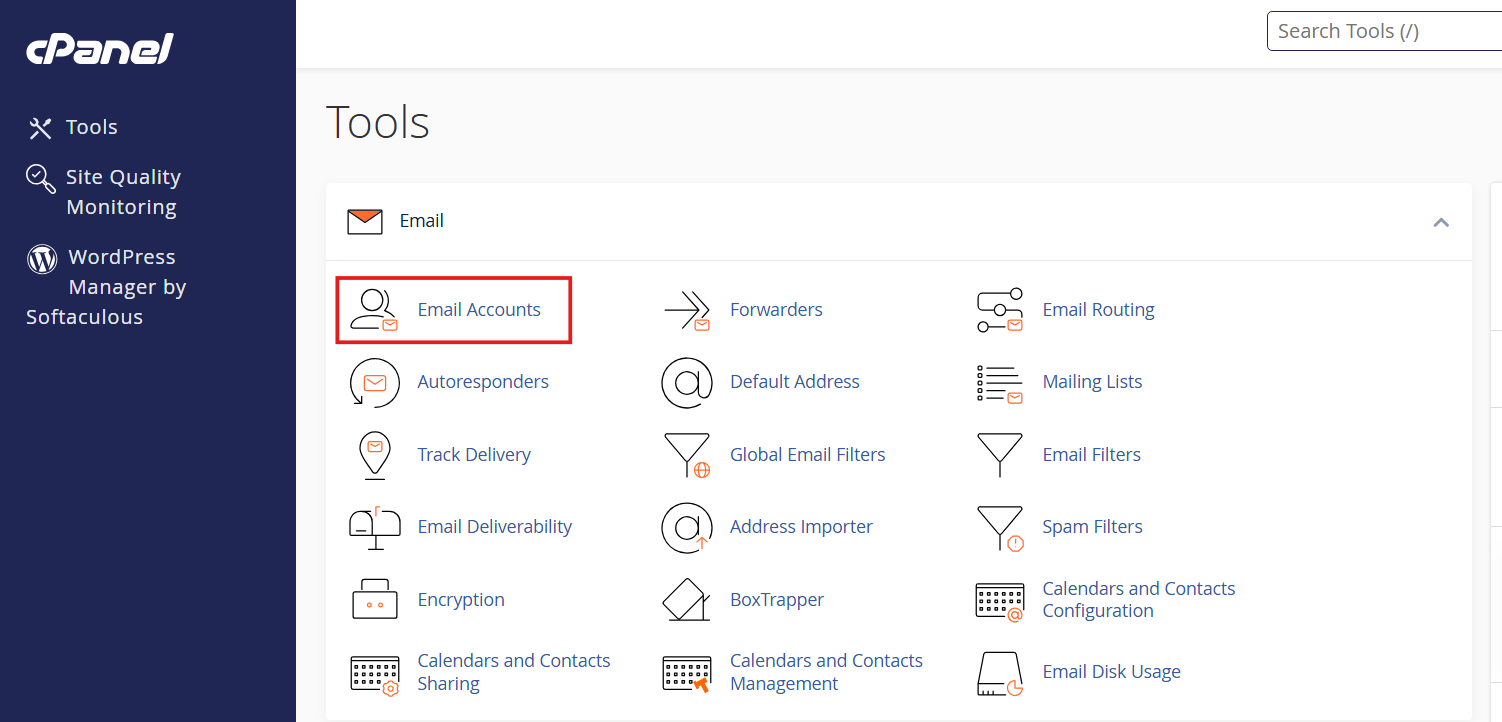
Log in to cPanel, go to the Email section, and click Email Accounts.
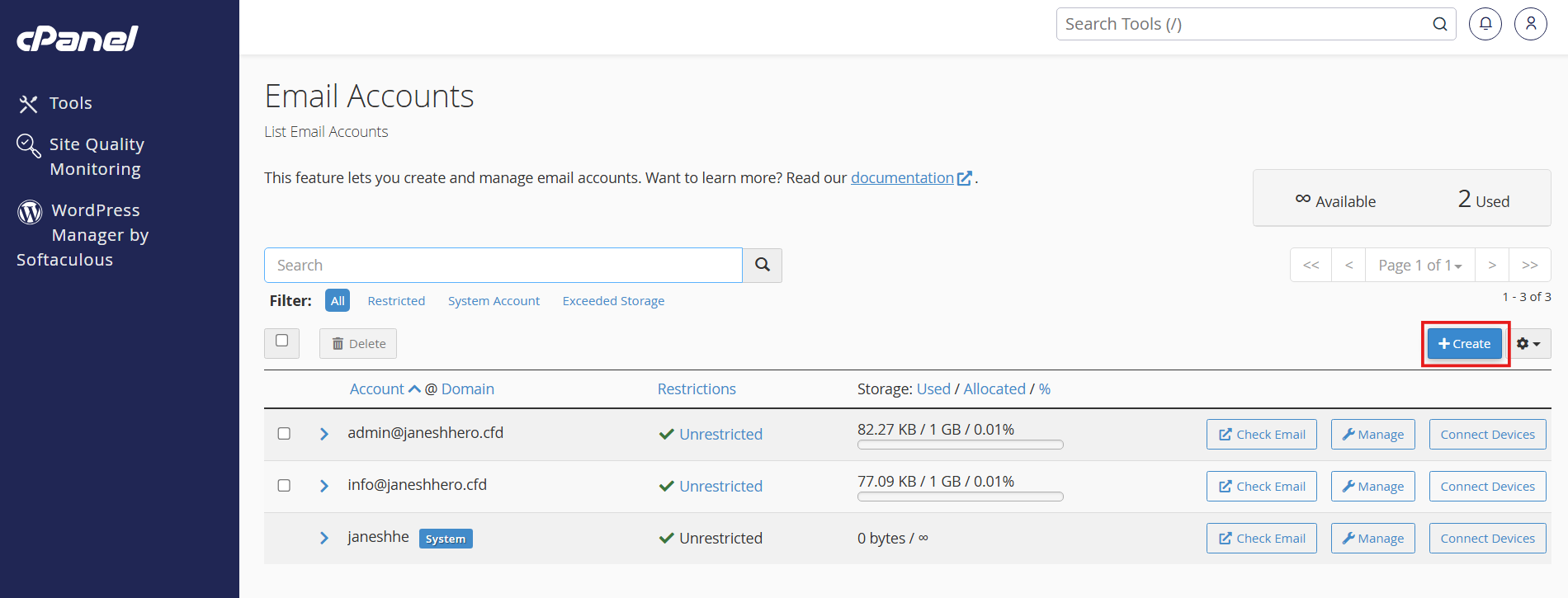
You’ll see a list of all the email accounts in cPanel for your hosting account, with three buttons next to each one (cPanel’s Email Accounts documentation lists every option):
- Check Email opens the mailbox in Webmail.
- Manage opens the password, storage, and access settings.
- Connect Devices shows the settings for apps like Outlook or Apple Mail.
You’ll also notice one email address marked System. That’s the system account tied to your cPanel username. You can’t delete it, and it’s best not to use it for everyday mail.
Step 1: Create an Email Account in cPanel
- In Email Accounts, click Create.
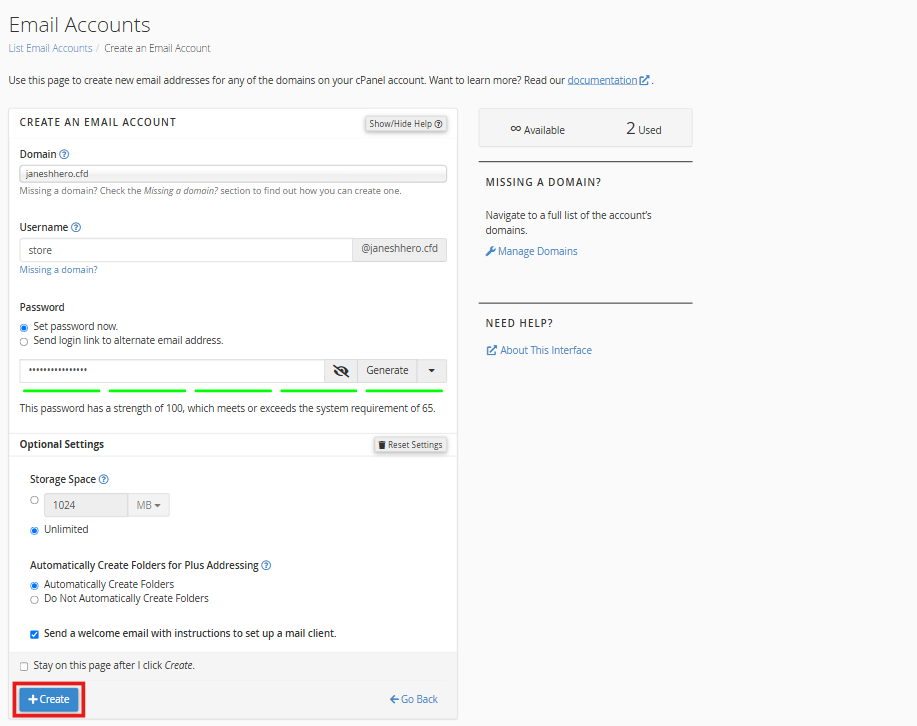
- If you have more than one domain, pick the right one from the Domain menu.
- In Username, type the part before the @, such as
info. Choose carefully, because you can’t rename an email address later. - Select Set password now and enter a strong password, or click Generate to create one.
- Under Storage Space from Optional Settings, enter a limit (for example, 2 GB) or select Unlimited if your host allows it.
- Leave the other options as they are unless you need them. Send welcome email is handy if someone else will use the account.
- Click Create.
Your new email address now appears in the list, ready to use. If your mail must reach people reliably, make sure your domain’s email records are set up correctly too. Our guide on fixing emails that go to spam walks you through it.
Step 2: Change an Email Password
Forgot a password, or someone left your team? You can set a new one at any time.
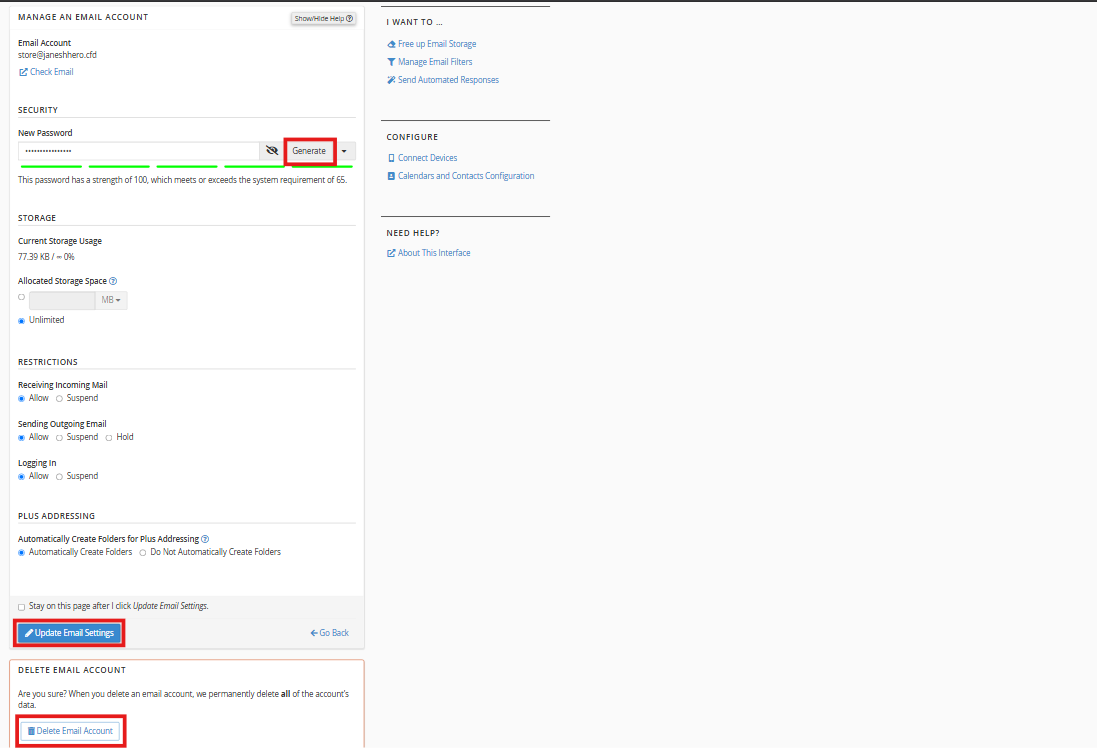
- In Email Accounts, click Manage next to the email address.
- Under Security, type a new password in New Password, or click Generate.
- Click Update Email Settings.
cPanel can’t show you an old password, so if one is lost, this is how you reset it. Remember to update the password in every phone or mail app that uses the account, or they’ll stop syncing.
Step 3: Set Storage Limits for Email Accounts in cPanel
Each mailbox has its own storage limit, called a quota. To change it:
- Click Manage next to the email address.
- Under Storage, check Current Storage Use to see how much space it already takes.
- Enter a new size in Allocated Storage Space, or select Unlimited if your host offers it.
- Click Update Email Settings.
A sensible limit stops one busy inbox from eating all your hosting space. But don’t set it too tight. When a mailbox fills up, new emails bounce back to the sender with a “mailbox full” error, and you won’t know you missed them.
The Storage column on the main page shows how full your email accounts in cPanel are, so it’s worth a quick glance now and then. cPanel’s guide to managing an email account explains every storage and restriction setting in detail.
Step 4: Manage Access to Email Accounts in cPanel
The Restrictions section on the Manage page lets you control email accounts in cPanel without deleting them. It’s useful when someone leaves, or when an account looks compromised.
| Setting | Allow | Suspend | Hold |
|---|---|---|---|
| Receiving Incoming Mail | Accepts new mail | Rejects new mail | Not available |
| Sending Outgoing Mail | Sends normally | Blocks sending | Queues outgoing mail without sending |
| Logging In | User can log in | User can’t log in | Not available |
A few practical uses:
- Employee leaving: Suspend Logging In so they can’t access the mailbox, but keep Receiving on so client emails still arrive.
- Account sending spam: Set Sending to Hold or Suspend, then change the password.
- Back to normal: Switch everything to Allow. If sending was on Hold, the queued messages go out at that point.
Click Update Email Settings after any change.
Step 5: Delete an Email Account in cPanel
Only delete an email address when you’re sure nobody needs it.
- Click Manage next to the email address.
- Scroll down and click Delete Email Account.
- Click Delete to confirm.
This permanently removes the account and every email stored in it. There’s no recycle bin. If you might need those messages later, download them first, or keep a backup. Our guide to restoring a website from backup explains how email backups work in cPanel.
If you only want to stop someone using the email address, suspending login (Step 4) is usually the safer choice.
Step 6: Access Webmail
Webmail lets you read and send mail in a browser, with no app to install. There are two ways in:
- From cPanel: In Email Accounts, click Check Email next to the email address.
- Directly: Go to
https://yourdomain.com:2096and log in with your full email address and its password. Many hosts also redirectyourdomain.com/webmailto the same page. See cPanel’s Webmail guide for more.
cPanel uses Roundcube as its webmail app. Once you’re in, click Compose to write an email, and your inbox shows new mail as it arrives.
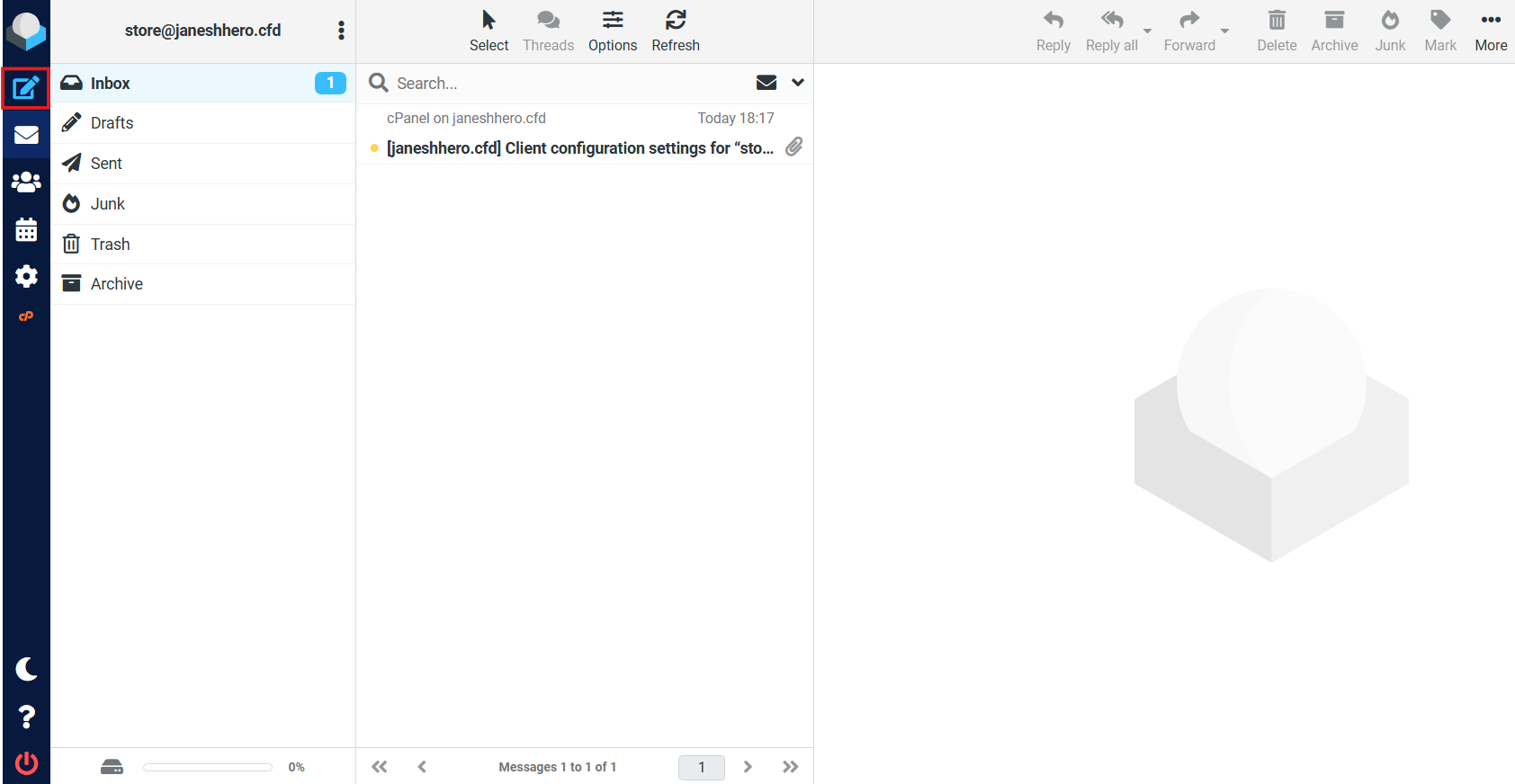
To read the same mailbox on your phone or laptop, use Connect Devices in cPanel to get the right settings. Mac users can follow our step-by-step guide to setting up custom domain email in Apple Mail.
Step 7: Fix Common Problems With Email Accounts in cPanel
| Problem | Likely cause | What to do |
|---|---|---|
| Senders get a “mailbox full” bounce | The account has reached its storage limit | Raise the limit in Manage, or delete old mail and empty folders |
| Can’t log in to Webmail | Wrong password, or Logging In is suspended | Reset the password and check Restrictions |
| Phone or Outlook stopped syncing | Password was changed in cPanel | Update the password in the mail app |
| Emails land in spam | Missing SPF, DKIM, or DMARC records | Follow the spam guide linked in Step 1 |
| Not receiving any email | Receiving is suspended, or DNS points elsewhere | Check Restrictions, then your domain’s MX records |
| Account sending mail you didn’t write | The password was probably stolen | Set Sending to Hold, then change the password |
For a domain that was added recently, mail may not work until DNS has updated. If you set up the domain as an addon domain, our guide on subdomains and addon domains in cPanel helps you confirm it’s configured correctly.
Frequently Asked Questions
How many email accounts can I create in cPanel?
It depends on your hosting plan. Some plans allow unlimited email accounts in cPanel, while others set a fixed number. Your plan details or your host can confirm the limit.
Can I rename an email account in cPanel?
No. Create a new email address with the name you want, move any mail you need, and then delete the old one. A forwarder from the old email address can catch anything sent to it in the meantime.
Does deleting email accounts in cPanel also delete their emails?
Yes. The account and all its stored messages are removed permanently.
Why can’t I delete the default email account?
It’s the system account linked to your cPanel username, so cPanel doesn’t allow it to be removed.
Can I use Gmail to read my cPanel email?
Yes. Use the settings from Connect Devices to add the email address to Gmail or any other mail app.
Final Thoughts
Managing email accounts in cPanel is straightforward once you know where to find the right options. Use Create to set up new email addresses, Manage to update passwords and storage limits or control access, and Check Email to open your inbox.
Before deleting an account, make sure you no longer need its emails and consider disabling access first. This is especially important when an employee leaves your business.
Keep passwords secure, set appropriate storage limits, and review account access regularly. These simple habits will help you keep your business email organized, secure, and ready to use.