

Have you encountered errors like “The uploaded file exceeds the upload_max_filesize directive in php.ini” or “Allowed memory size of … bytes exhausted” while managing your WordPress website? These errors occur when PHP resource limits prevent WordPress from uploading larger files or handling memory-intensive tasks. Fortunately, you can resolve them by adjusting a few PHP settings. In this guide, we’ll walk you through how to increase the WordPress memory limit and PHP upload limit.
Quick Answer
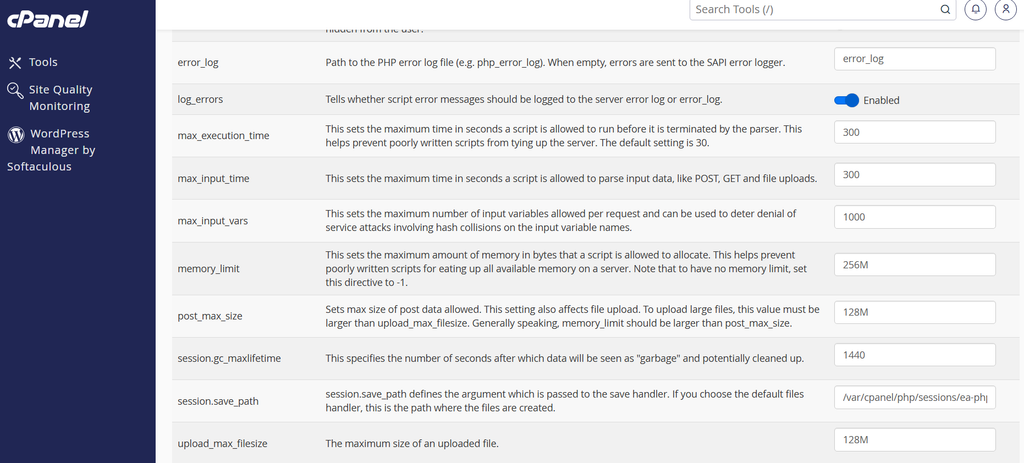
In cPanel, open MultiPHP INI Editor, select your domain, and set:
memory_limit: 256Mupload_max_filesize: 128Mpost_max_size: 128M
Click Apply, then confirm the new values in WordPress under Tools > Site Health > Info > Server. If the values don’t change, try the troubleshooting steps below or ask your hosting provider to update them.
Which PHP Setting Fixes Your Error?
Different WordPress errors are caused by different PHP configuration limits. Before changing any settings, identify the error message displayed on your website and Update the corresponding PHP value using the cPanel instructions below.
Use the table below to find the setting you need to increase:
| Error Message | PHP Setting to Increase |
|---|---|
| “The uploaded file exceeds the upload_max_filesize directive in php.ini” | upload_max_filesize and post_max_size |
| “The link you followed has expired” (during file upload) | post_max_size and upload_max_filesize |
| “Allowed memory size of X bytes exhausted” | memory_limit |
| “Maximum execution time of 30 seconds exceeded” | max_execution_time |
| File upload stops before completion on a slow connection | max_input_time |
Important: Always increase upload_max_filesize and post_max_size together. The upload_max_filesize setting controls the maximum size of an individual uploaded file, while post_max_size limits the total size of the entire upload request. If either value is too low, large file uploads may fail.
For more details about PHP upload restrictions and common configuration issues, refer to the official PHP documentation on file upload pitfalls.
How to Check Your Current WordPress Memory Limit
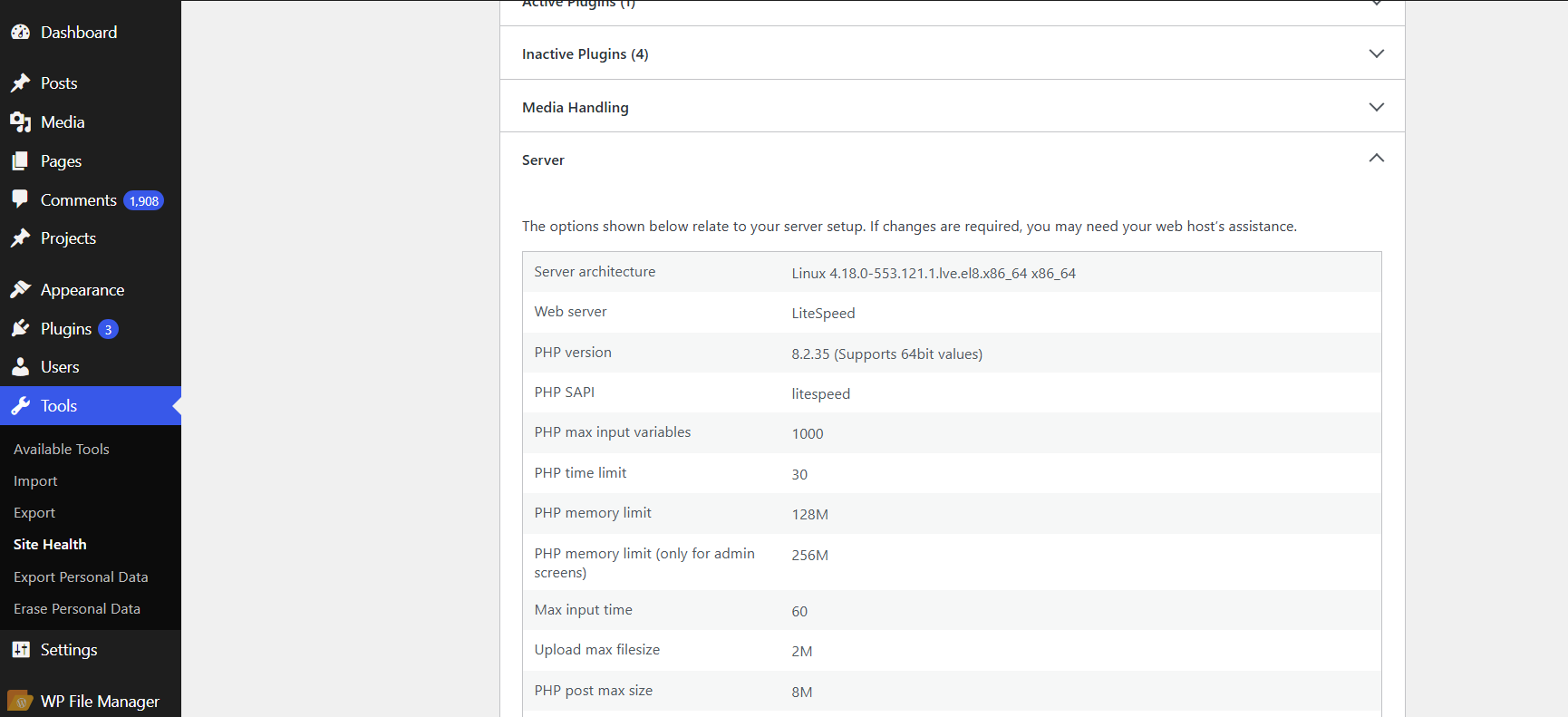
- In your WordPress dashboard, go to Tools > Site Health.
- Open the Info tab and expand Server.
- Note the PHP memory limit, Upload max filesize, and PHP post max size.
For a quick upload check, Media > Add New shows the maximum upload size below the upload box.
How to Increase WordPress Memory and PHP Upload Limits in cPanel
The easiest way to increase your WordPress memory limit and PHP upload limit is through cPanel’s MultiPHP INI Editor. It allows you to update PHP configuration settings without manually editing configuration files.
Follow these steps:
- Log in to your cPanel account.
- Navigate to the Software section and open MultiPHP INI Editor.
- Select the Basic Mode tab.
- From the location dropdown menu, select the domain where your WordPress website is hosted. Choose Home Directory only if you want the settings to apply across your hosting account.
- Update the following PHP settings:
| Setting | Recommended value |
|---|---|
memory_limit | 256M |
upload_max_filesize | 128M |
post_max_size | 128M |
max_execution_time | 300 |
max_input_time | 300 |
- Click Apply to save your changes.
- Log in to your WordPress dashboard and navigate to Tools > Site Health > Info > Server to verify the updated PHP values.
Important: Increasing PHP’s memory_limit also increases the memory available to WordPress, provided your hosting environment allows it. You don’t need to edit wp-config.php or other configuration files when using this method.
For more information about the available settings, refer to cPanel’s MultiPHP INI Editor documentation.
Tip: Avoid setting unnecessarily high PHP limits. A larger memory limit does not automatically improve website performance. It simply allows PHP scripts to consume more memory when needed, which can also give poorly optimized plugins more room to consume server resources.
Troubleshooting: PHP Values Not Updating
If WordPress still displays the old values after updating your PHP settings, try these troubleshooting steps:
- Verify the selected domain: Make sure you updated the PHP settings for the correct domain in MultiPHP INI Editor.
- Clear your cache: Clear your WordPress caching plugin and server-side cache, if enabled.
- Wait and refresh: Allow a minute or two for the changes to take effect, then revisit the WordPress Site Health page.
- Check hosting restrictions: If the values remain unchanged, your hosting provider may be overriding or restricting these PHP settings.
Alternative Solution: Ask Your Hosting Provider
If the PHP values still don’t change after following the steps above, your hosting provider may restrict manual PHP configuration changes. In this case, contact your hosting provider and ask them to update the PHP settings for your domain.
You can submit a support ticket with the following request:
Please update the PHP settings for my domain, example.com, as follows:

memory_limit: 256M
upload_max_filesize: 128M
post_max_size: 128M
Your hosting provider can check the server configuration and apply the changes if your hosting plan supports them.
Need higher PHP limits regularly? Your website may require more server resources than your current hosting plan provides. Consider upgrading your hosting plan. Our guide on Shared Hosting vs VPS vs Cloud Hosting explains the differences and helps you choose the right option.
Frequently Asked Questions
What is the recommended WordPress memory limit?
A memory limit of 256M is sufficient for most WordPress websites. Smaller blogs and basic websites can usually run well on 128M, while resource-intensive websites, such as large WooCommerce stores or sites using heavy page builders, may require 512M or more.
Why does my WordPress site still run out of memory at 256M?
If your website continues to experience memory errors at 256M, increasing the limit further may not solve the underlying problem. A poorly optimized or resource-heavy plugin could be consuming excessive memory. Try deactivating plugins one at a time to identify the cause. You should also check whether your website has performance issues, as explained in our guide on why a website gets slow.
Can I avoid increasing the PHP upload limit?
In many cases, yes. Large image files, especially uncompressed photos from smartphones, are a common reason for upload errors. Try resizing and compressing your images before uploading them to WordPress. Follow our guide on how to optimize images for faster loading for practical tips.
Does increasing the WordPress memory limit slow down my website?
No. Increasing the memory limit does not automatically make your website slower. It simply allows PHP scripts to use more memory when needed, up to the configured maximum. Your website will only consume the memory required to process its tasks.
Final Thoughts
Increasing your WordPress memory and PHP upload limits is usually straightforward. You can update memory_limit, upload_max_filesize, and post_max_size through cPanel’s MultiPHP INI Editor, then verify the changes in WordPress Site Health. If the new limits don’t take effect or your hosting plan restricts these settings, contact your hosting provider for assistance.
With the right PHP settings in place, your WordPress website can handle larger file uploads and memory-intensive tasks more smoothly.