

You’ve just bought your first VPS, and your hosting provider has sent you a welcome email with an IP address, a username, and a password. But there’s no familiar dashboard or control panel to manage your server. So, how do you connect to it and start using it?
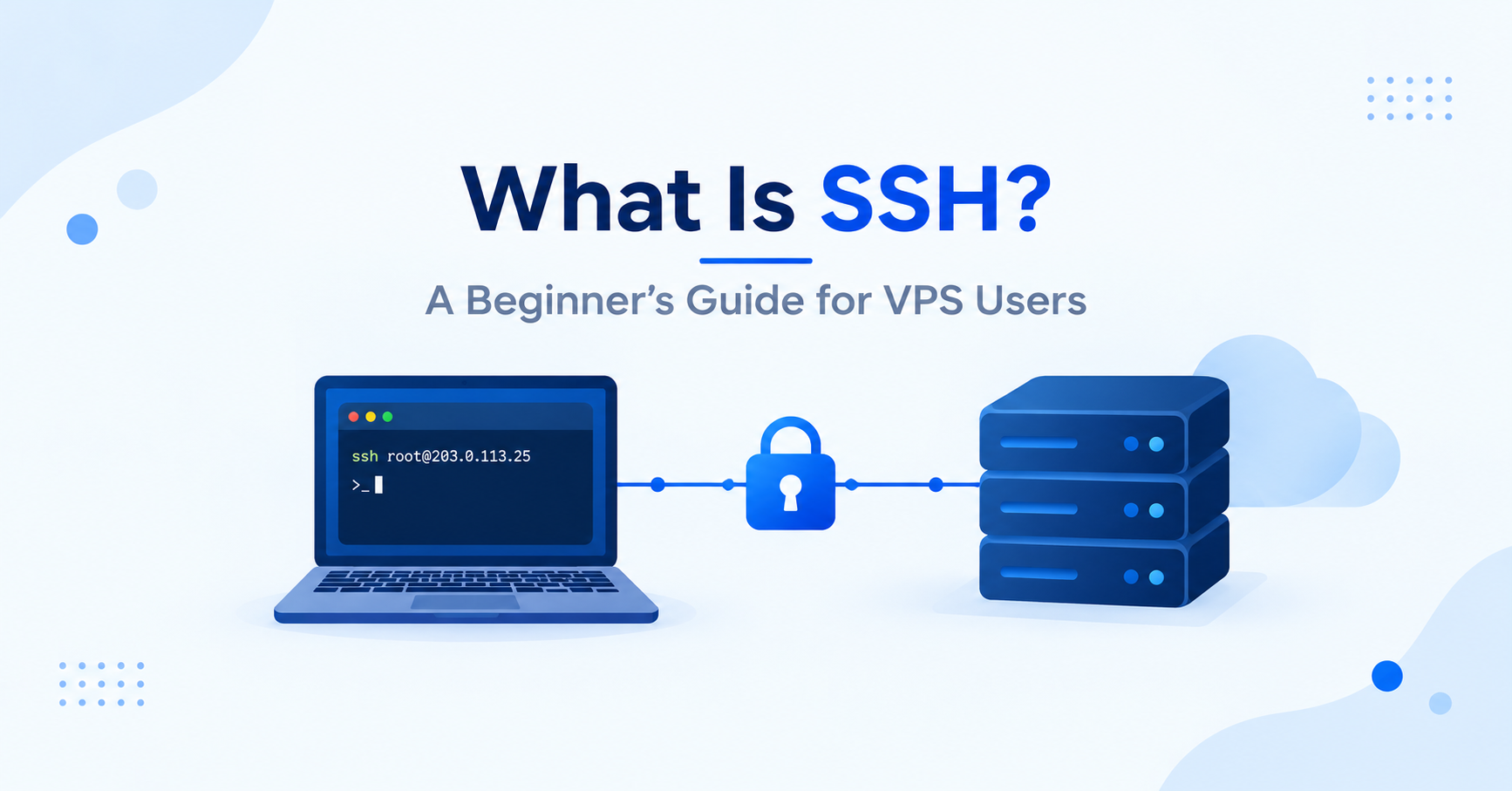
That’s where SSH (Secure Shell) comes in. SSH lets you securely connect to your VPS from your own computer and manage it by typing commands in a terminal. You can use it to install software, configure your server, deploy websites, and much more.
If you’re new to VPS hosting, don’t worry. You don’t need to be a Linux expert to get started. In this beginner-friendly guide, you’ll learn what is SSH, how it works, how to connect to your VPS for the first time, and how to secure your connection.
Quick Answer: What is SSH?
The simplest answer to what is SSH: SSH (Secure Shell) is a network protocol that lets you securely connect to your VPS from your computer and manage it through a terminal. You can use SSH to run commands, install software, manage files, configure server settings, and deploy websites remotely. It encrypts the connection between your computer and the server, helping protect your login credentials and data.
What Is SSH?
SSH stands for Secure Shell. It’s a network protocol that allows you to connect securely to another computer and run commands on it remotely.
Think of SSH as a way to control your VPS from your own computer. Instead of managing the server through a graphical dashboard, you open a terminal, connect to the server, and enter commands.
For example, you can use SSH to install software, manage files, restart services, and deploy a website.
SSH encrypts the communication between your computer and the server, helping protect your login credentials and other information from being read by people monitoring the network.
What Is SSH Used For on a VPS?
On shared hosting, a control panel handles most of the work for you. A VPS gives you full control of the whole server instead, which is the key difference explained in our shared hosting vs VPS vs cloud hosting comparison. That control comes through SSH, so on a VPS almost every task starts with an SSH session. You’ll use it to:
- Install and update software
- Manage files and folders
- Restart services like your web server
- Deploy a website or application
- Check disk space, memory, and server load
How Does SSH Work?
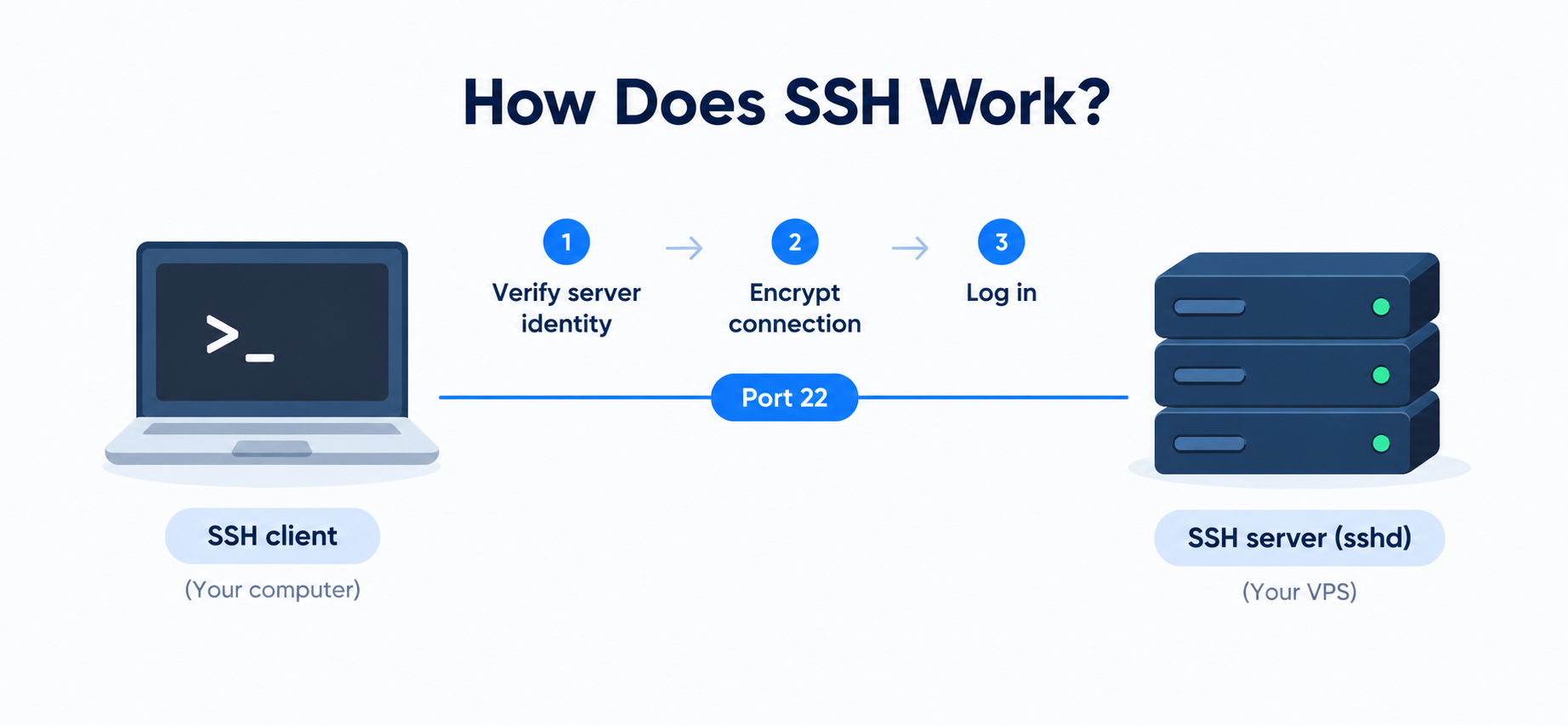
SSH uses two main components:
- SSH client: The program on your computer that connects to the server. Most systems use OpenSSH.
- SSH server: The software running on your VPS that accepts incoming SSH connections. On Linux, this service is usually called
sshd.
By default, SSH uses TCP port 22. Some providers configure a different port, so check your VPS details before connecting.
When you connect, SSH verifies the server’s identity, establishes an encrypted connection, and authenticates your login.
How to Connect to Your VPS Using SSH
To connect to your VPS, you’ll need its IP address, username, and password or SSH key. Your provider usually supplies these details when your server is created.
On Windows
Windows 10 and 11 generally support SSH through the built-in OpenSSH client.
Step 1: Open PowerShell or Windows Terminal.
Open the Start menu, search for PowerShell, and launch it.
Step 2: Check whether SSH is installed.
Run:
sshIf you see usage instructions, the SSH client is available. Otherwise, install OpenSSH Client through Windows Optional Features.
For step-by-step instructions, follow Microsoft’s guide: Install OpenSSH on Windows.
Step 3: Connect to your VPS.
Run the following command, replacing the example username and IP address with your actual details:
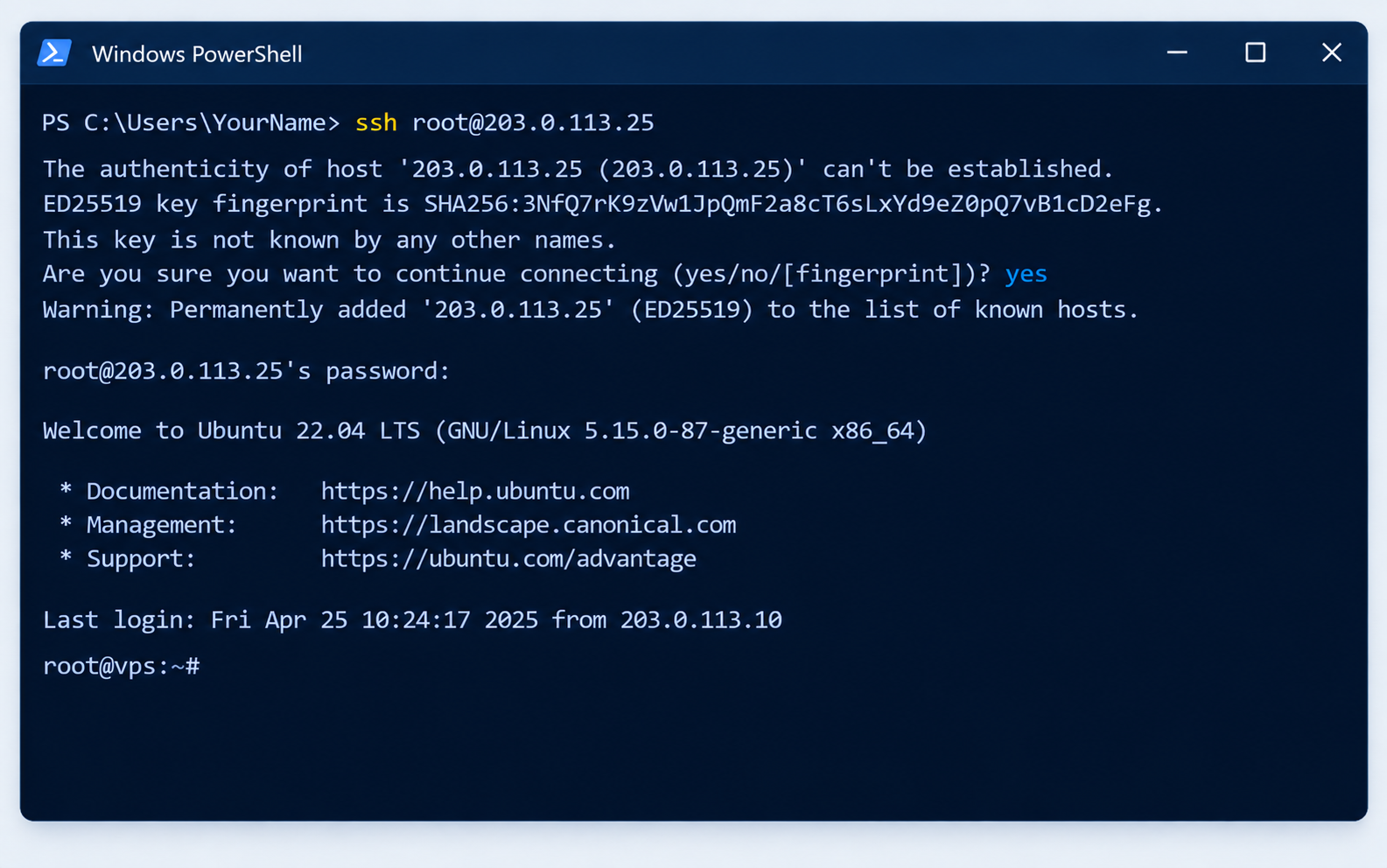
ssh [email protected]If your provider uses a different port, such as 2222, run:
ssh -p 2222 [email protected]Step 4: Verify the server and log in.
On your first connection, SSH may ask you to verify the server’s identity.
If your provider supplies a host key fingerprint, verify it before accepting the connection. Then type yes if the identity matches.
Enter your password when prompted. You won’t see any characters while typing, which is normal. Press Enter when finished.
If authentication succeeds, you’re connected to your VPS.
On macOS or Linux
Open Terminal and run the same SSH command:
ssh [email protected]For a custom port, use the -p option as shown earlier.
The connection process is the same: verify the server’s identity and authenticate using the configured login method.
Basic SSH Commands Every Beginner Should Know
Once connected, you can use commands to check your server and perform basic tasks.
| Command | What it does |
|---|---|
whoami | Shows your current username |
pwd | Shows your current directory |
ls -la | Lists files, including hidden files |
df -h | Shows available disk space |
uptime | Shows how long the server has been running and its system load |
exit | Closes your SSH session |
For example, run:
whoamiIf you’re logged in as root, the output will normally be root.
To disconnect from the VPS when you’re finished, run:
exitThese commands are enough to get you familiar with the terminal. You can learn more advanced commands as you begin managing your website or application.
What Is SSH Key Authentication?
SSH supports password authentication and key-based authentication. SSH keys are generally recommended for VPS administration because they reduce reliance on passwords.
An SSH key pair contains two files:
- Private key: Stored on your computer. Keep it secret and never share it.
- Public key: Added to the server so it can verify that you possess the matching private key.
When you connect, your computer uses the private key to prove your identity. The private key itself is never sent to the server.
Step 1: Generate an SSH Key Pair
Run this command on your own computer, not on your VPS:
ssh-keygen -t ed25519 -C "[email protected]"Replace the example label with one that helps you identify the key.
Press Enter to accept the default file location, and set a passphrase when prompted.
The command normally creates these files:
~/.ssh/id_ed25519
~/.ssh/id_ed25519.pub
The first is your private key; the second is your public key.
Step 2: Add Your Public Key to the VPS
On macOS or many Linux distributions, you can use:
ssh-copy-id [email protected]On Windows, you can display your public key in PowerShell:
Get-Content "$HOME\.ssh\id_ed25519.pub"Copy the output, connect to your VPS using your existing login method, and run these commands on the server:
mkdir -p ~/.ssh
chmod 700 ~/.ssh
nano ~/.ssh/authorized_keys
Paste your public key on its own line. In Nano, save using Ctrl+O, press Enter, and exit using Ctrl+X.
Then run:
chmod 600 ~/.ssh/authorized_keysMake sure the file belongs to the account you’re configuring and that its ownership and permissions are correct.
Step 3: Test Your SSH Key
Open a new terminal window and try connecting again:
ssh [email protected]If everything is configured correctly, you should be able to authenticate without entering the server account’s password. You may still need to enter your private key’s passphrase.
Keep your existing session open until you’ve confirmed that the new login works.
How to Secure SSH on Your VPS
After setting up SSH, take a few basic steps to protect your server.
1. Create a Regular User
The root account has full administrative privileges. A mistake while using it can affect the entire server.
On Ubuntu or Debian, create a regular user and grant sudo access:
adduser deploy
usermod -aG sudo deploy
On AlmaLinux or Rocky Linux, the administrative group is usually wheel:
adduser deploy
passwd deploy
usermod -aG wheel deploy
Replace deploy with your preferred username.
Install your public key for the new user and verify that you can connect:
ssh [email protected]Test administrative access with:
sudo whoamiIf sudo is configured correctly, the output should be root.
2. Disable Root Login and Password Authentication
Once you’ve confirmed that your regular user can connect using an SSH key, you can disable direct root login and password-based SSH authentication.
Open the SSH configuration file:
sudo nano /etc/ssh/sshd_configSet these options:
PermitRootLogin no
PasswordAuthentication no
Additional configuration files may override these settings, so check the effective configuration before proceeding:
sudo sshd -T | grep -E '^(permitrootlogin|passwordauthentication) 'The intended values are permitrootlogin no and passwordauthentication no.
Validate the configuration:
sudo sshd -tIf there are no errors, restart SSH.
On Ubuntu or Debian:
sudo systemctl restart sshOn AlmaLinux or Rocky Linux:
sudo systemctl restart sshdKeep your current session open and test a new connection before disconnecting. If you cannot log in, use your provider’s console to recover access.
Also remember to keep your operating system updated, configure a firewall to allow only necessary ports, and maintain regular backups.
Common SSH Errors and How to Fix Them
You may encounter errors when connecting to your VPS. Here are some common ones and what they usually mean.
| Error | Possible cause | What to check |
|---|---|---|
Connection refused | SSH isn’t accepting connections on that port | SSH service and port settings |
Connection timed out | Network traffic isn’t reaching the SSH service | IP address and firewall rules |
Permission denied (publickey) | The server rejected your SSH key | Username, public key, permissions, and SSH configuration |
Permission denied, please try again | The password was rejected | Username and password |
REMOTE HOST IDENTIFICATION HAS CHANGED | The server’s host key differs from the saved identity | Whether the server was rebuilt or its identity changed |
What If the Server’s Host Key Has Changed?
This warning can appear after reinstalling a VPS, but it can also indicate an unexpected security issue.
Don’t ignore it without investigating. If you’ve confirmed through a trusted source that the server’s identity has legitimately changed, remove the old entry:
ssh-keygen -R 203.0.113.25Reconnect and verify the new fingerprint before accepting it.
If you’re completely locked out, check whether your provider offers a web console or rescue environment. These tools can help you repair a broken SSH configuration or restart the SSH service.
Frequently Asked Questions About SSH
What Is SSH in Simple Words?
SSH is a secure way to connect to another computer and control it remotely using commands. On a VPS, it lets you manage your server from your own computer.
What Is SSH Port 22?
Port 22 is the default TCP port used by SSH. If your server uses a different port, specify it with the -p option when connecting.
What Is SSH Access on a VPS?
It’s your permission to log in to the server over SSH. A VPS includes it by default, usually as the root user, and you can add more users with their own keys.
What Is SSH Tunnelling?
It sends another connection through your encrypted SSH session. For example, you can reach a database on your VPS without opening its port to the internet.
What Is SSH Compared to SSL?
SSH secures your login to the server. SSL (TLS) secures the connection between visitors and your website. A live website usually needs both.
Is SSH Safe to Use?
Yes. SSH encrypts your connection and verifies the server. Learn more about how SSH encryption works. For extra safety, use keys and keep your server updated.
What Happens If I Lose My Private SSH Key?
It can’t be recovered. Use another key or your provider’s console to log in, remove the old public key, and add a new one.
Final Thoughts
Understanding what is SSH and how it works gives you a solid foundation for managing your VPS securely. It allows you to connect to your server remotely, run commands, install software, and troubleshoot issues without needing direct access to the machine.
As you put what you’ve learned into practice, start with basic SSH commands, configure SSH key authentication, and create a regular administrative user. Remember to review your security settings to help protect your server from unauthorised access.
You don’t need to master everything at once. Keep practising, take things one step at a time, and you’ll gradually gain the confidence to manage your VPS and host websites or applications securely.